Role guide
Senior Rep — Clinical Speed
Reviews gameplan calls, runs discovery, sends client contract bundles, schedules onboarding with Courtney.
- 01
Review pending gameplan calls
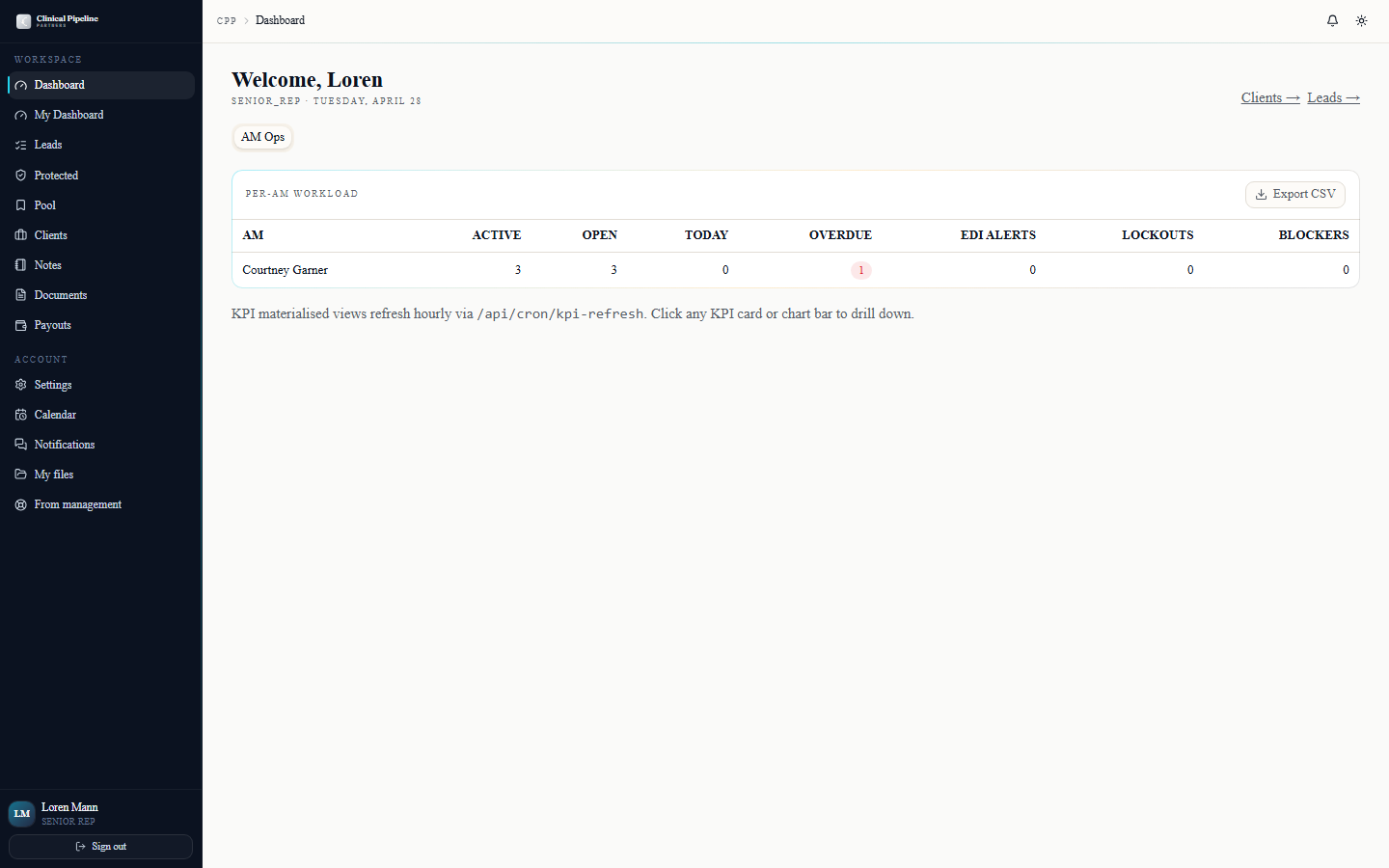
As the Clinical Speed senior rep, your dashboard at /dashboard opens to the CS workflow tab.…
As the Clinical Speed senior rep, your dashboard at /dashboard opens to the CS workflow tab. The first card lists pending gameplan calls — leads where an outside or inside rep has a qualified DM and is requesting your time to confirm fit and walk the audit motion.
Each row shows facility, DM contact, owning rep, the date the request was made, and the SLA clock (target: book within 2 business days). Click into the lead to read the rep's notes and the qualification facts before you accept the slot.
You can:
- Confirm the proposed time — fires the calendar invite to you, the rep, the DM, and optionally Beto.
- Counter-propose — the rep gets a one-line message + 3 alternative times; once they pick, the invite fires.
- Decline with reason — sends the lead back to the rep flagged "needs more qualification" so they don't keep the slot held.
- 02
Discovery scheduling
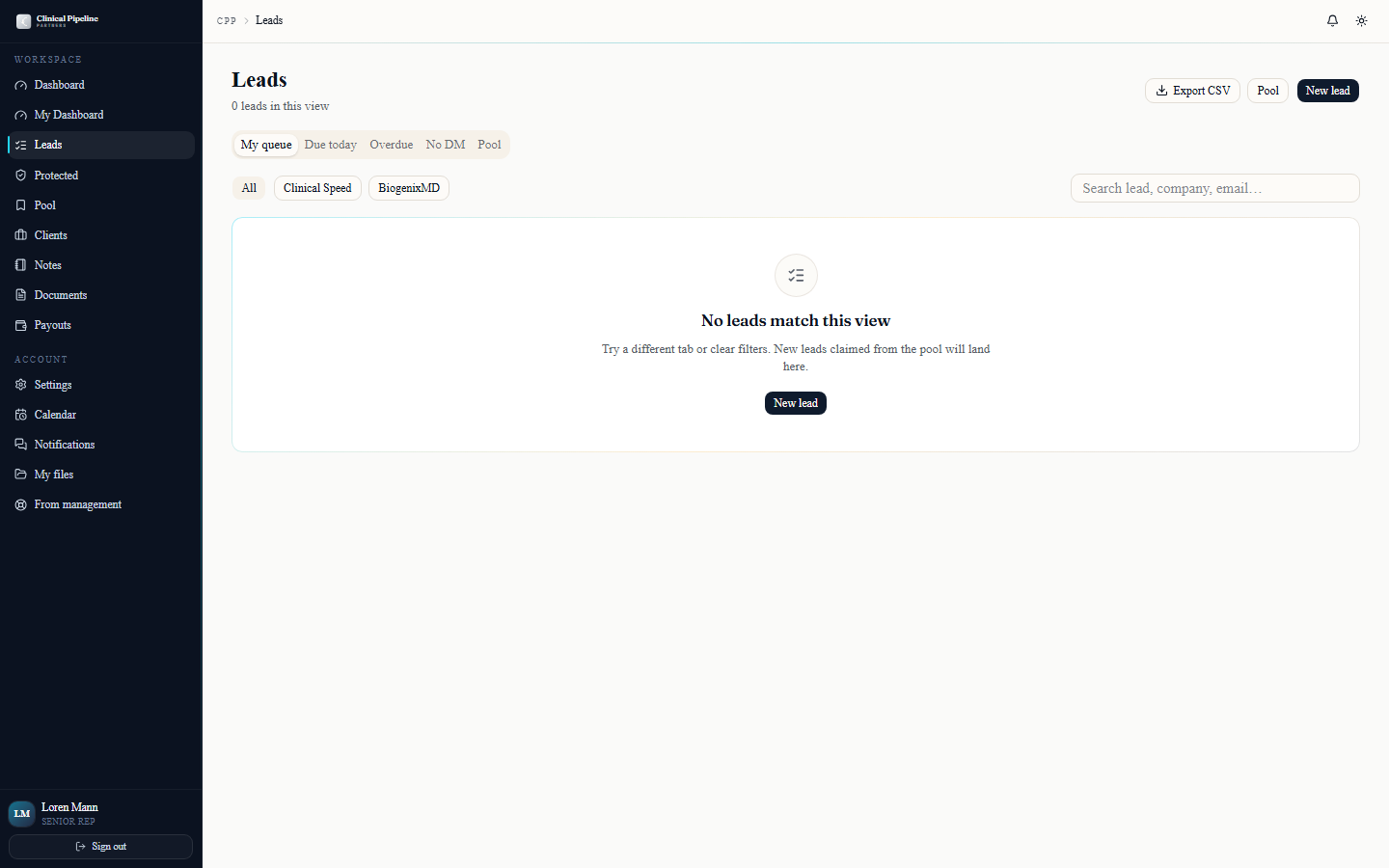
After the gameplan call, mark the lead gameplan complete from the lead folder. The next stage opens — discovery — and the lead surfaces back on the rep's queue with a "schedule dis…
After the gameplan call, mark the lead gameplan complete from the lead folder. The next stage opens — discovery — and the lead surfaces back on the rep's queue with a "schedule discovery" prompt.
For deals where the DM wants to move quickly, you can short-circuit and schedule discovery yourself from the lead folder. The booking page is
/book/loren/discovery(same engine as gameplan, different meeting type).Discovery agenda (default template the system attaches to the calendar invite):
- 5 min — recap the gameplan-call commitments.
- 15 min — walk the contract bundle (Service or Pilot, BAA, Authorization of Representation).
- 5 min — confirm the EDI access path and SFTP timeline.
- 5 min — set the contract-close date and the onboarding meeting with Courtney.
- 03
Trigger the client contract bundle
Once discovery confirms fit and pricing, you trigger the client contract bundle: Service or Pilot + BAA + Authorization of Representation.…
Once discovery confirms fit and pricing, you trigger the client contract bundle: Service or Pilot + BAA + Authorization of Representation. From the lead folder click Send contract bundle and pick:
- Service vs Pilot — Service is the standard 30%/24% fee structure; Pilot is the special 0% pilot offering.
- BAA variant — ours, theirs, or both. (Most clients accept ours; some health systems require a counter-signed version of theirs alongside ours.)
- Authorization of Representation — auto-included; signs Courtney as our side.
Submit and the system creates a 3-button signing page at
/c/{token}for the client's DM. They sign all three documents in one session. Loren signs Service / Pilot, Courtney signs BAA + AoR — all countersignatures are applied automatically by the e-sign engine.When all three documents finalize, the workflow engine fires:
- A welcome email to the DM with their next-steps onboarding packet.
- A task for Courtney to schedule the kickoff meeting.
- A task for Tapa to provision SFTP and validate EDI access within the SLA window.
- 04
Schedule onboarding with Courtney
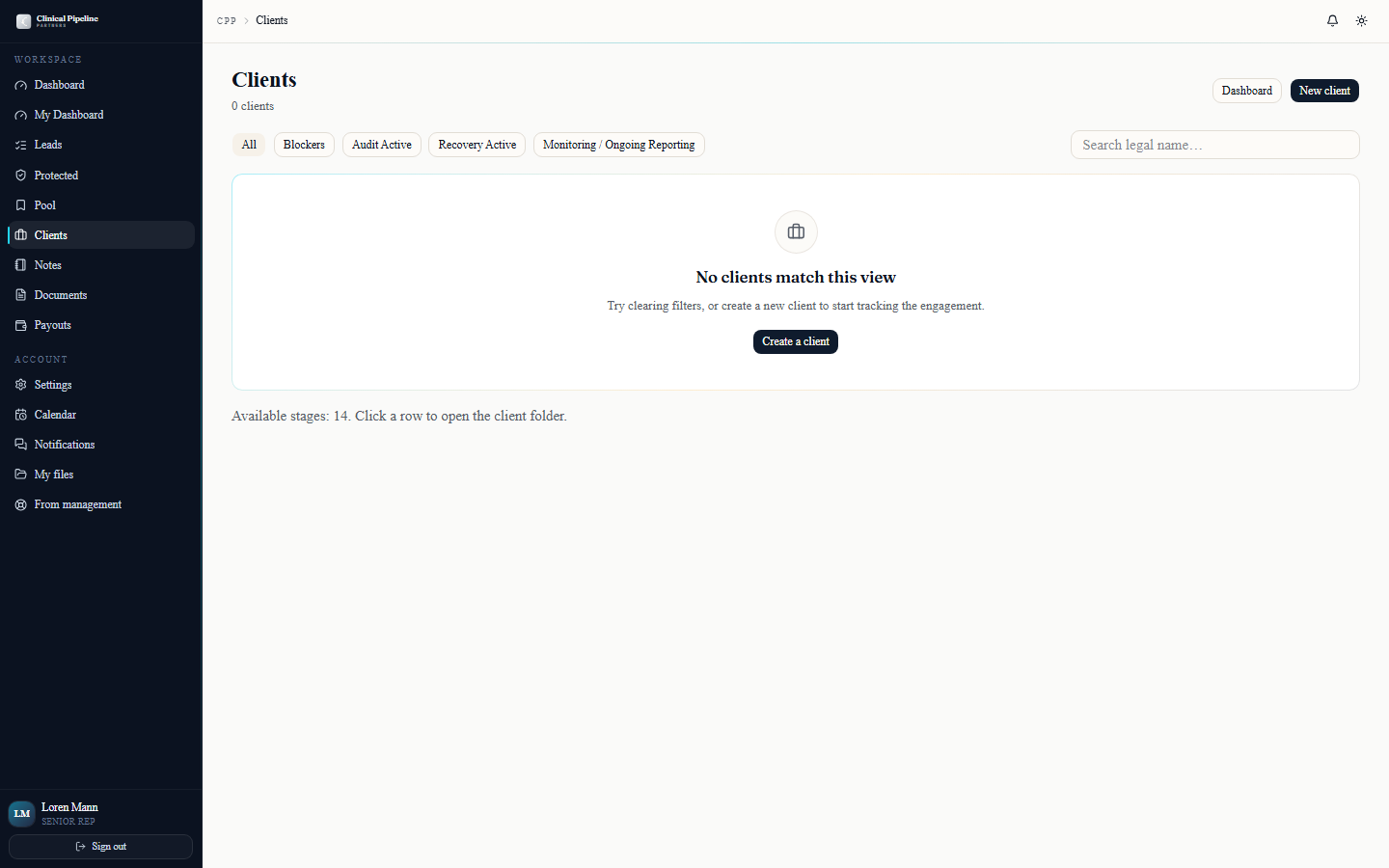
When the contract bundle finalizes, the lead converts to a client and a record is created at /clients/{id}.…
When the contract bundle finalizes, the lead converts to a client and a record is created at
/clients/{id}. The workflow engine assigns Courtney as account manager and creates a task on her queue: "Schedule kickoff meeting (Meeting 1) within 2 business days."Your job is to confirm the handoff happened cleanly:
- Open the new client folder. Confirm the executed contracts are filed under the Documents tab.
- Confirm the Workflow tab shows the kickoff task on Courtney with the right SLA clock.
- Drop a shared note under the client capturing anything Courtney needs to know that isn't in the contract — DM personality, urgency, any side-deals discussed during discovery.
If Courtney has a scheduling conflict you can also add Beto to the kickoff invite — senior reps may include Beto on any meeting, contingent on his Google Calendar showing him free.
- 05
Send a contract run for signing
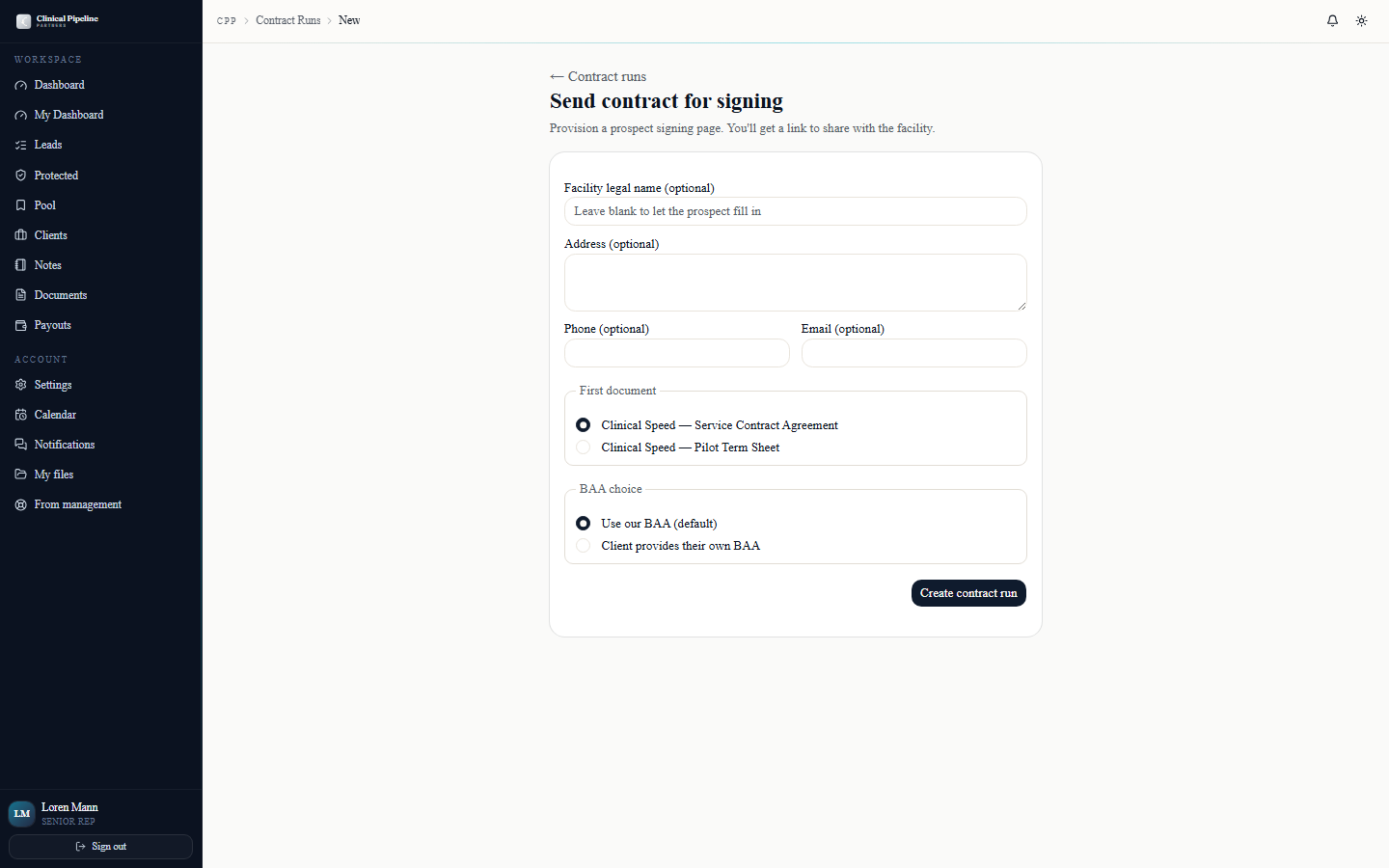
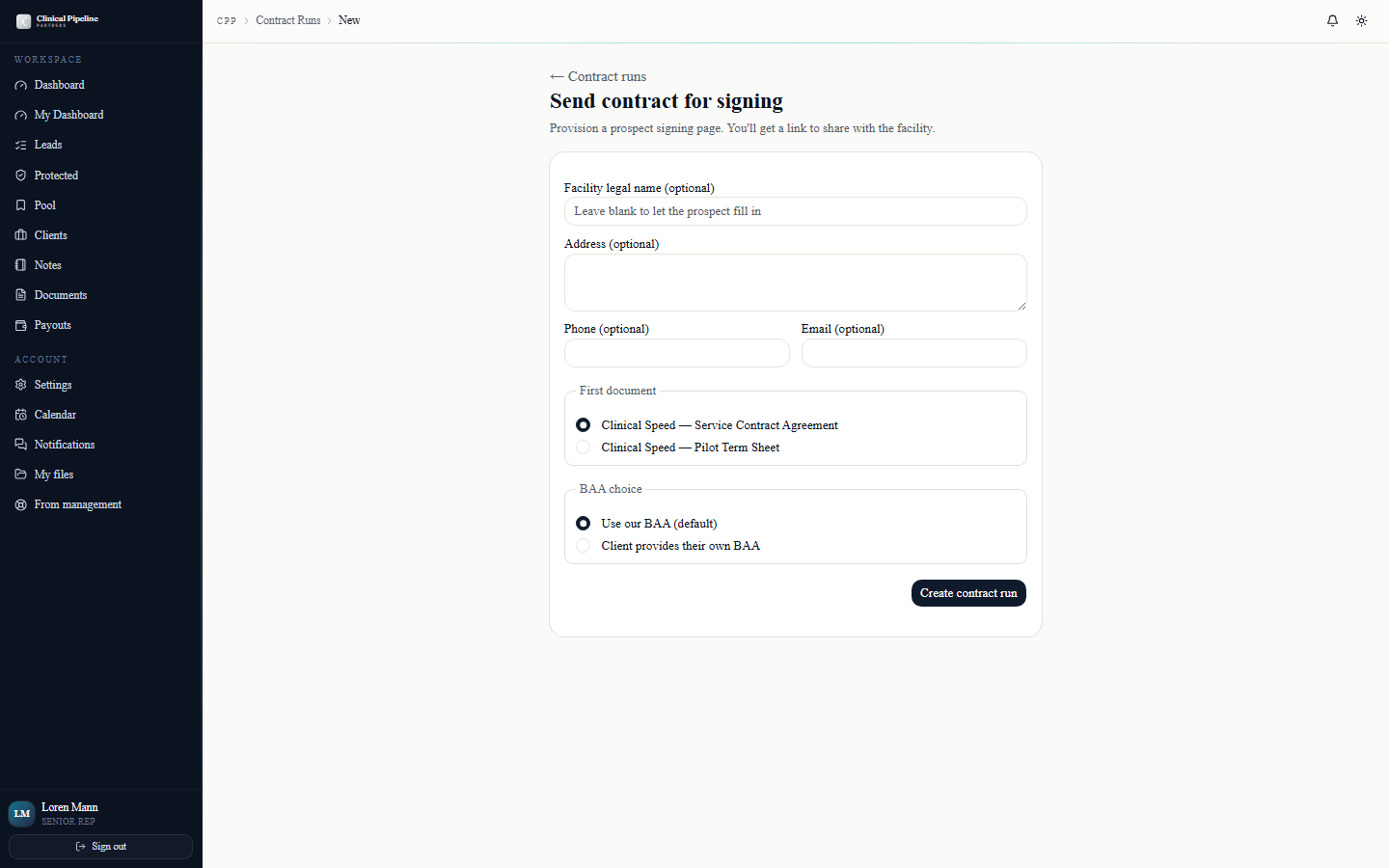
Once discovery is locked and the prospect has agreed to terms, open /contract-runs/new to create a contract run.…
Once discovery is locked and the prospect has agreed to terms, open /contract-runs/new to create a contract run. This is the new home for the client contract bundle — replacing the older "stub" mentioned in the previous step.
The form captures:
- First doc — Service or Pilot. Service is the standard 30%/24% fee structure; Pilot is the 0% pilot offering.
- BAA choice — ours, theirs, or both. Most clients accept ours; some health systems require us to counter-sign their template alongside ours.
- Facility info — optional pre-fill block. If you already know the legal name, NPI, and address, drop them in so the prospect doesn't have to. Anything you skip the prospect fills on their side.
- Authorization of Representation — auto-included. Courtney countersigns as our side.
Click Send for signing and the system mints a JWT-gated prospect URL at
/c/{token}, fires the first reminder email to the DM, and lands you on the contract-run detail page where you can monitor progress. - 06
Walk the prospect through the 3-button signing page
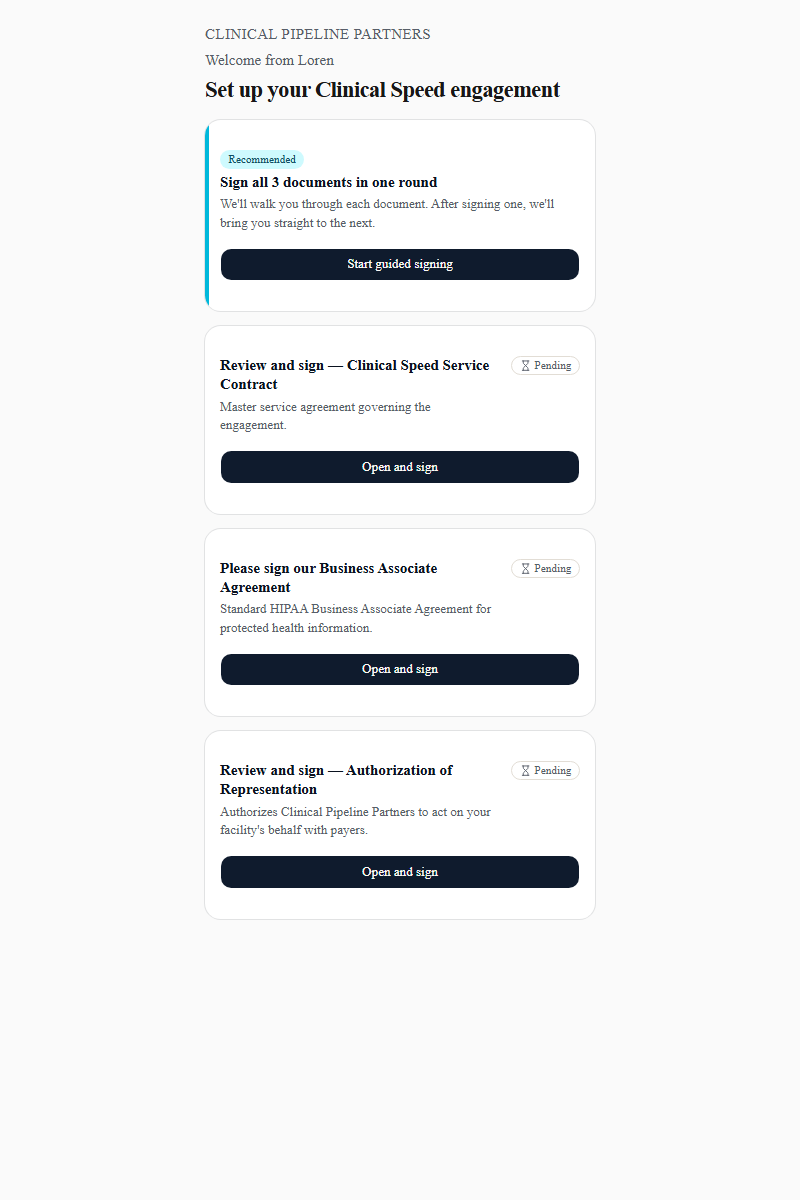
The link you sent opens at /c/{token} — the public, JWT-gated prospect page. The DM sees three signing tiles: Service or Pilot, the BAA variant you picked, and the Authorization of…
The link you sent opens at
/c/{token}— the public, JWT-gated prospect page. The DM sees three signing tiles: Service or Pilot, the BAA variant you picked, and the Authorization of Representation. They sign each in its own session; countersignatures are applied automatically by the e-sign engine when both sides finalize.If the DM wants to power through everything in one sitting, they can pick Sign all in one round. That mode walks them through every required signing-session sequentially — when one finishes, a 5-second auto-advance return banner ships them to the next one without an extra click.
Before any document loads, the prospect fills in the facility info block (legal name, NPI, address, billing contact) — anything you pre-populated on the contract run is already there and just needs confirmation. Once all three documents finalize, the run flips to
signed, the senior rep + COO get a "Ready for onboarding scheduling" email, and the booking link for/book/courtney/cs-onboardingbecomes the next step. - 07
Resend, cancel, and re-send RFI from the contract run
![The /contract-runs/[id] detail page with sender controls in the right rail.](/instructions-img/senior-rep-cs/07-sender-controls.png)
After you send a run, manage it from /contract-runs/[id] — the back-office detail page.…
After you send a run, manage it from
/contract-runs/[id]— the back-office detail page. The right rail shows the live signing status (which slots are signed, which are open) and a reminder schedule indicator so you know exactly when the next nag email fires.Three sender controls live there:
- Resend reminder now — immediate dedupe-bypassing email to whichever signers haven't completed their slot. Use this when the DM tells you they lost the link.
- Cancel send — pulls the run with a reason field (closed list: wrong DM, terms changed, prospect lost, other). The prospect URL goes dead and the audit trail captures who cancelled and why.
- Re-send RFI — regenerates the fillable PDF + magic link and ships a fresh email. Use this when the COO needs the prospect to redo the RFI (e.g., scope changed mid-onboarding).
The Intake (RFI) tab on the same page is where you watch the RFI come back — both the digital web form and any "Upload PDF return" the COO drops in. Once the run is
signedand the RFI is in, the workflow engine takes over from there. - 08
Pipeline snapshot, notifications, and email preferences
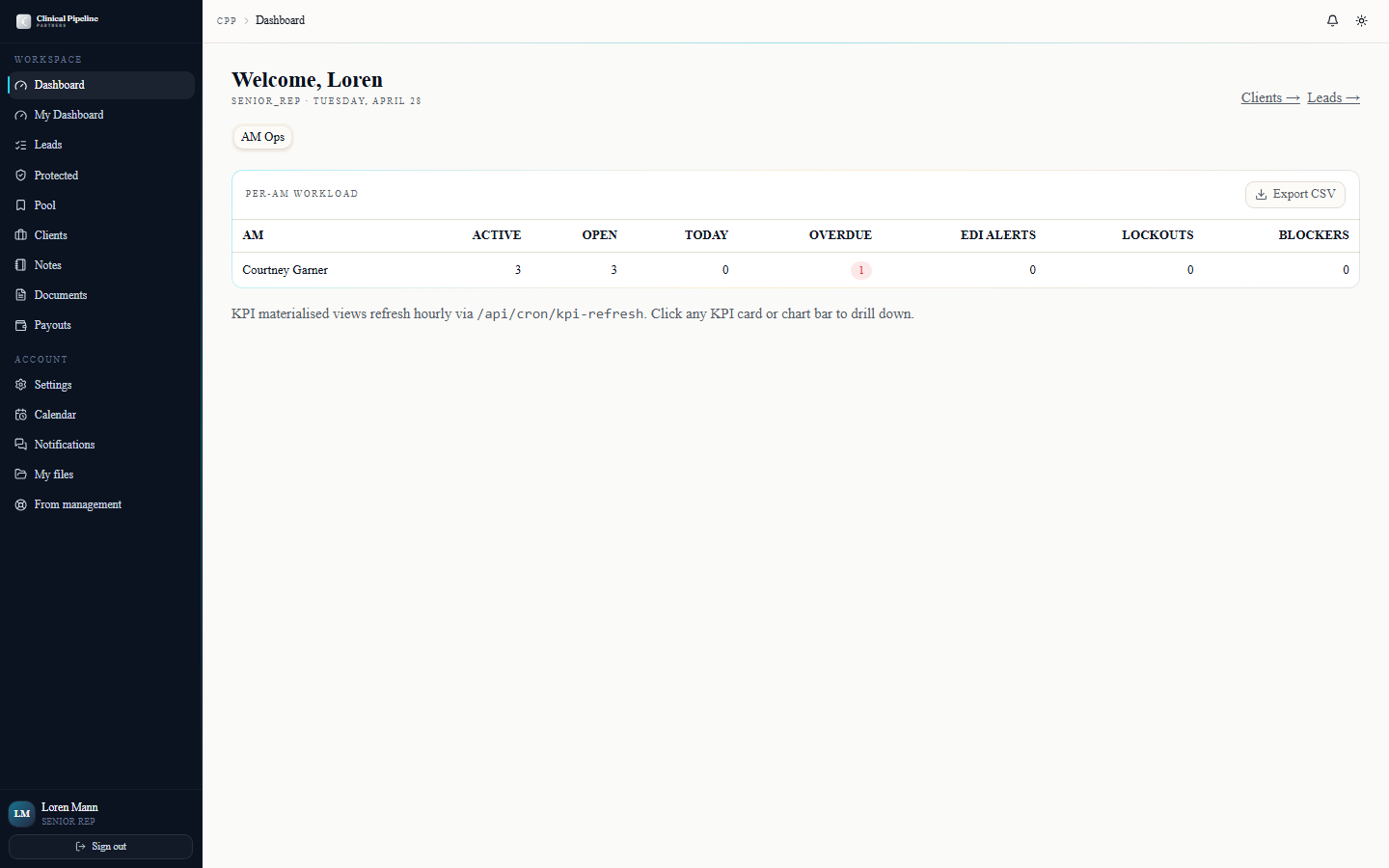
Your /dashboard now opens with a rep pipeline snapshot above the workflow tabs — three KPI cards: callbacks-this-week, discovery-next-7d, and deals-closing-30d.…
Your
/dashboardnow opens with a rep pipeline snapshot above the workflow tabs — three KPI cards: callbacks-this-week, discovery-next-7d, and deals-closing-30d. Click any number to drop into the filtered list; the snapshot refreshes whenever a signing-session, callback, or stage transition fires.The bell icon in the TopBar opens a popover with the last 7 days of role-relevant events: signing-session updates, RFI submissions, contract-run status flips, and any reminder emails that bounced. Unread counts stay until you click into the source row.
Open
/settingsto tune the noise. Three tabs:- Profile — display name, photo, default time zone.
- Email preferences — per-event-type opt-in toggles. Mute the reminder-cadence emails for runs you sent yourself if the bell coverage is enough.
- Sessions & security —
Sign out everywhereworks today; the full session listing is *Coming soon*.
- 09
Back-office power tools — bulk actions, quick menu, shortcuts
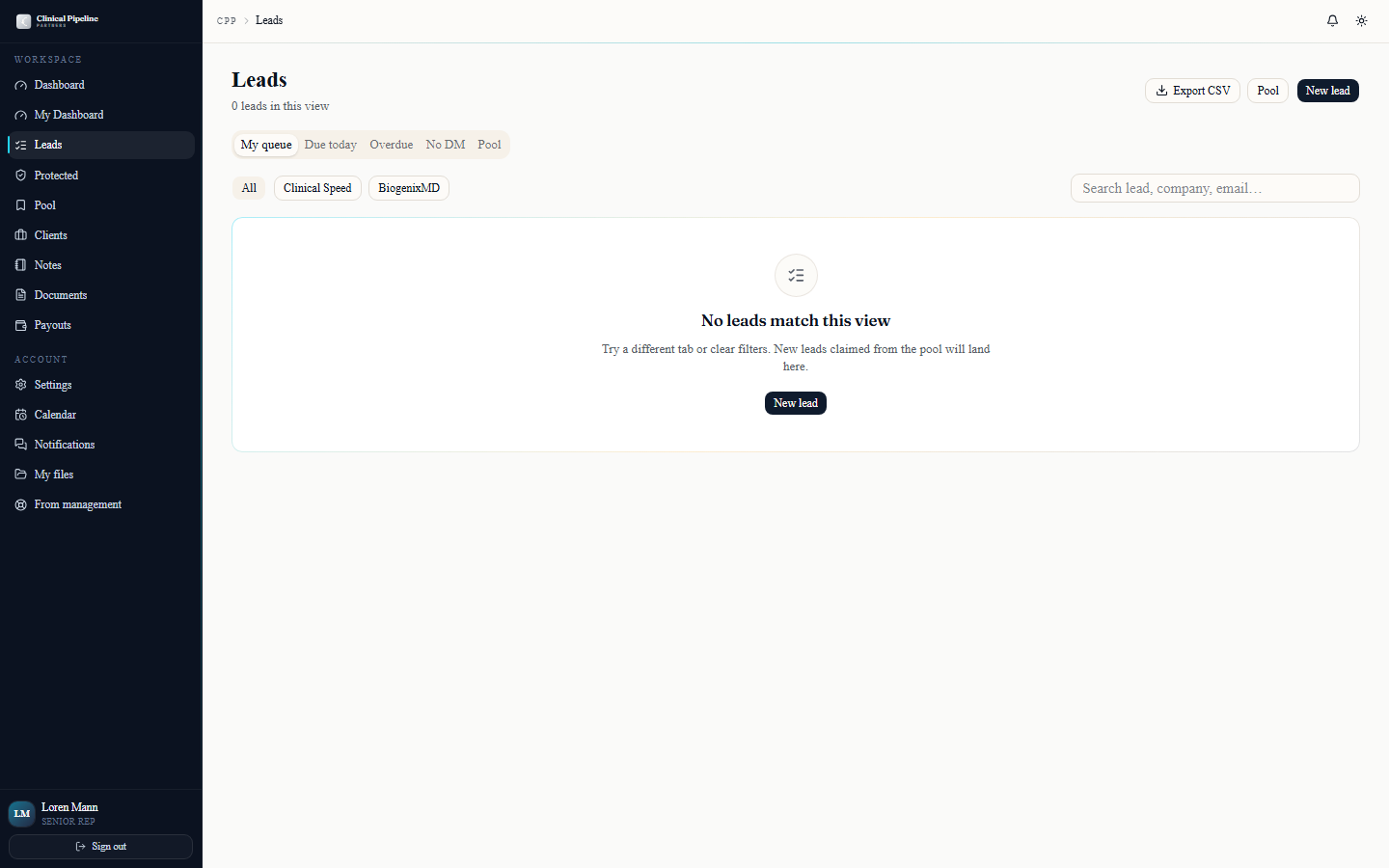
The leads and clients tables now ship with bulk multi-select and a per-row three-dot quick-actions menu.…
The leads and clients tables now ship with bulk multi-select and a per-row three-dot quick-actions menu. Tick the checkboxes on the leads table and the action bar reveals Reassign to..., Mark not interested, and Add to call queue. The three-dot menu on each row mirrors the most-used single-row actions so you don't have to drill into the folder for routine work.
A few neighbouring touches worth knowing:
- Protected leads view at /leads/protected supports
?expiring_soon=1to surface only leads inside 7 days of expiry, plus an Export CSV button for offline review. - CSV export also lives on the leads index, clients index, and recovery entries — use it to pull a snapshot for a Loren-Beto sync without a screenshot.
- Internal notes visibility is enforced by the 3-tier model (
shared_with_subject,senior_management,admin_only); hover the Who will see this? tooltip when writing a note to confirm the audience before saving. - Press `?` anywhere in the back office to open the keyboard-shortcuts modal — jump-to-search, new-lead, and disposition keys are all listed there.
- Protected leads view at /leads/protected supports


![The /contract-runs/[id] detail page with sender controls in the right rail.](/instructions-img/senior-rep-cs/07-sender-controls.webp)

