Role guide
COO
Owns Clinical Speed account management: client folders, communication logs, AM Ops dashboard, recovery review.
- 01
Open a client folder
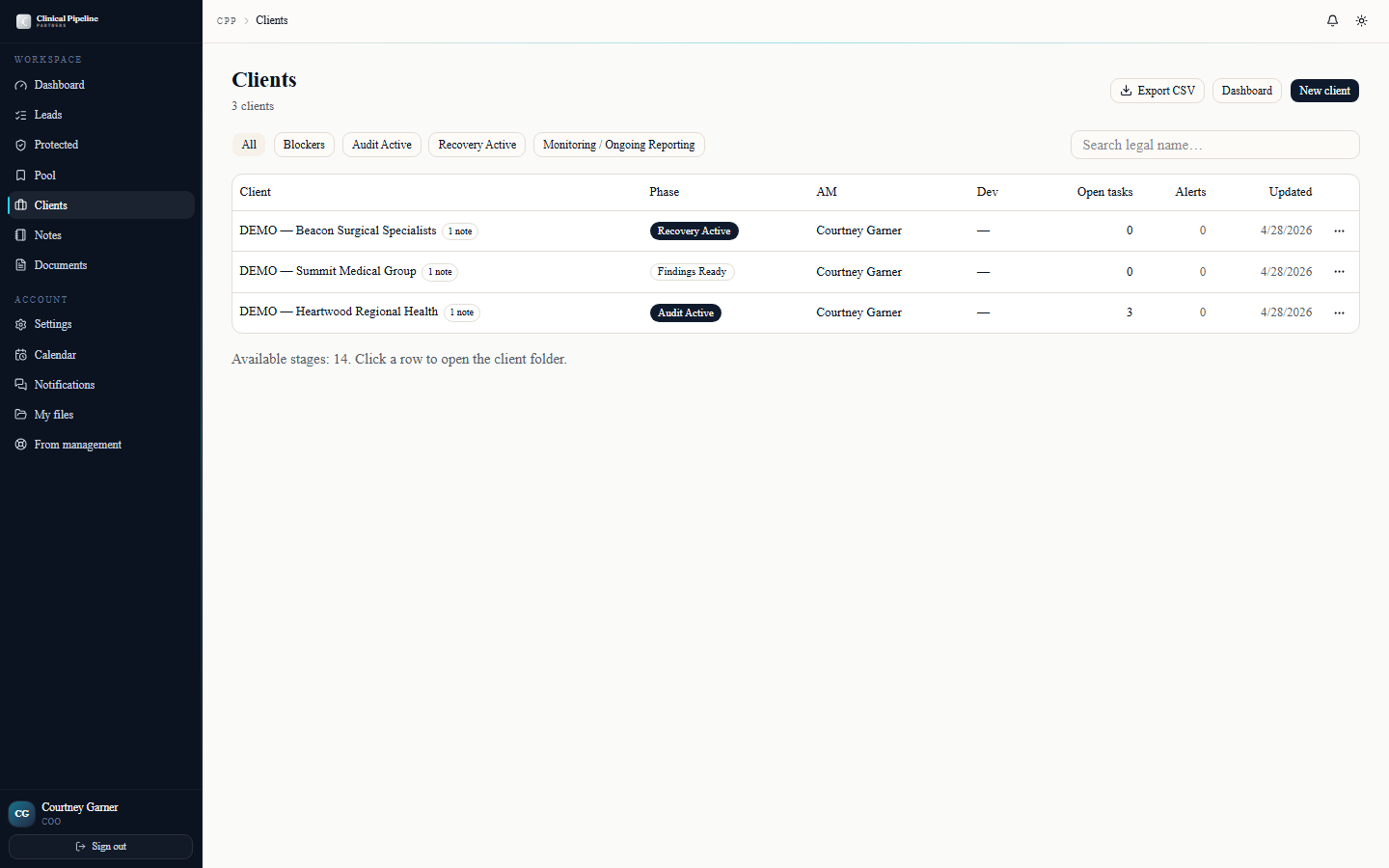
Every Clinical Speed client lives at /clients/{id}. The folder is a 10-tab interface designed so anyone — you, Tapa, Beto, an AM delegate — can land on a single page and understand…
Every Clinical Speed client lives at
/clients/{id}. The folder is a 10-tab interface designed so anyone — you, Tapa, Beto, an AM delegate — can land on a single page and understand exactly where the client is in the 14-stage workflow.The 10 tabs:
- Overview — header KPIs (current phase, days since signing, AM, next deadline), workflow timeline, recent activity.
- Contacts — client-side DM, billing contact, technical contact, plus our internal ones (you as AM, Loren, Beto, Tapa).
- Documents — every executed contract + every uploaded support file, with the 3-tier visibility model.
- Workflow — the 14-stage pipeline with each stage's deadline, owner, and status.
- Payers — the payer mix being audited (Anthem, BCBS, Cigna, etc.) with per-payer status.
- Audits — every audit batch Tapa has logged, with verified-835 reconciliations.
- Recovery — recovery_entries with auto fee snap (30% initial / 24% ongoing / 0% pilot).
- Invoices — Net 7 invoices generated by the monthly billing cron, with payment status.
- Communication — every logged email, call, meeting note across the whole engagement.
- Notes — the 3-tier notes thread for this client.
Open from your dashboard or from /clients (filterable by phase, payer, AM).
- 02
Log a communication
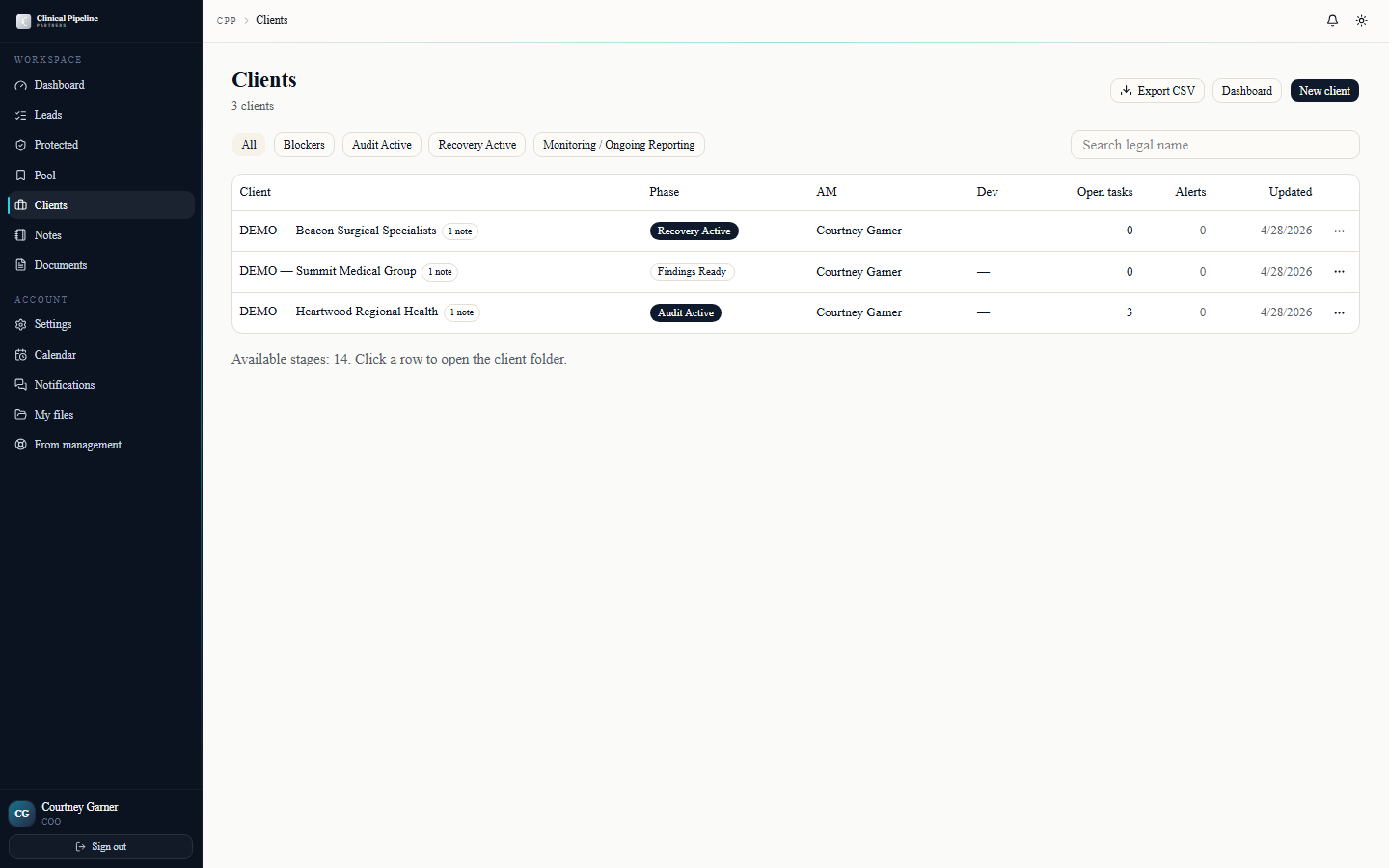
On any client folder open the Communication tab and click Log entry. The form captures:
On any client folder open the Communication tab and click Log entry. The form captures:
- Type — call, email, meeting, voicemail, sms, other.
- Direction — inbound, outbound.
- Contact — typeahead across the client's contacts. Add a new contact inline if needed.
- Summary — short subject line that surfaces in the activity feed.
- Detail — full notes. Markdown-ish (we render bold + bullet lists).
- Attachments — drag any file (PDF, screenshot, .eml, etc.). Files inherit the client folder's visibility tier defaults.
- Next action — optional. If you set one, the system creates a workflow task with the date you pick.
Submitting writes the entry to the activity feed, attaches files to the Documents tab, and (if a next-action was set) creates the task on the Workflow tab.
- 03
Schedule Meeting 2 (findings review)
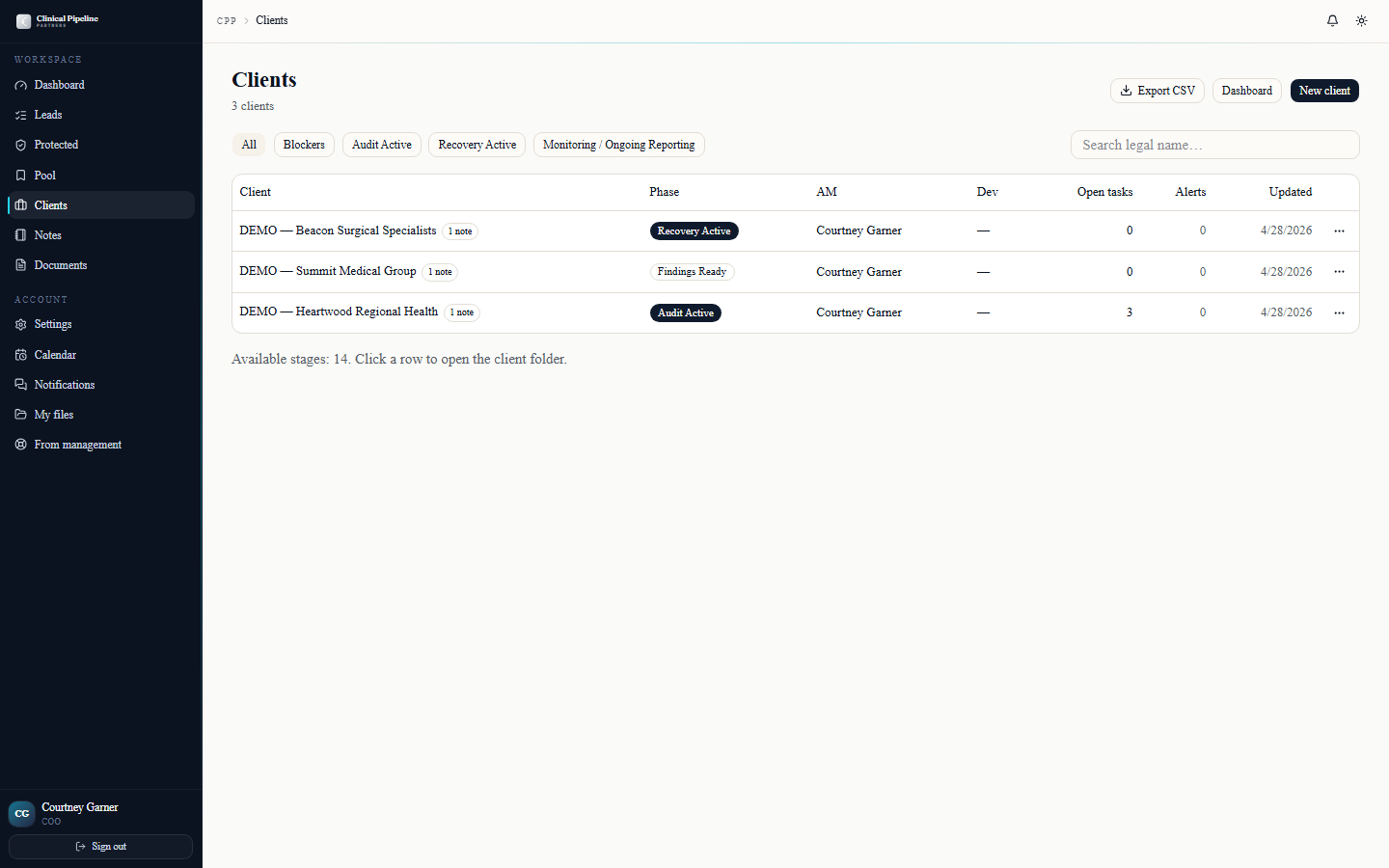
Meeting 2 is the findings-review meeting — typically scheduled 5 business days after Tapa marks the audit findings ready.…
Meeting 2 is the findings-review meeting — typically scheduled 5 business days after Tapa marks the audit findings ready. From the client folder's Workflow tab the system surfaces the prompt automatically when the SLA opens.
Click Schedule findings review to open the booking page at
/book/courtney/findings-review. The booking flow:- Reads your Google Calendar freebusy with 30-min padding.
- Suggests slots over the next 10 business days.
- Lets you add Beto, Tapa, and the client DM (multi-attendee).
Once scheduled, the system:
- Fires the calendar invite to all attendees.
- Attaches the findings deck (Tapa generates it; you confirm before send).
- Sends a 24h reminder + a 2h reminder.
- Tracks the SLA — if Meeting 2 isn't held within 5 business days of findings ready, the dashboard surfaces a warning.
- 04
AM Ops dashboard
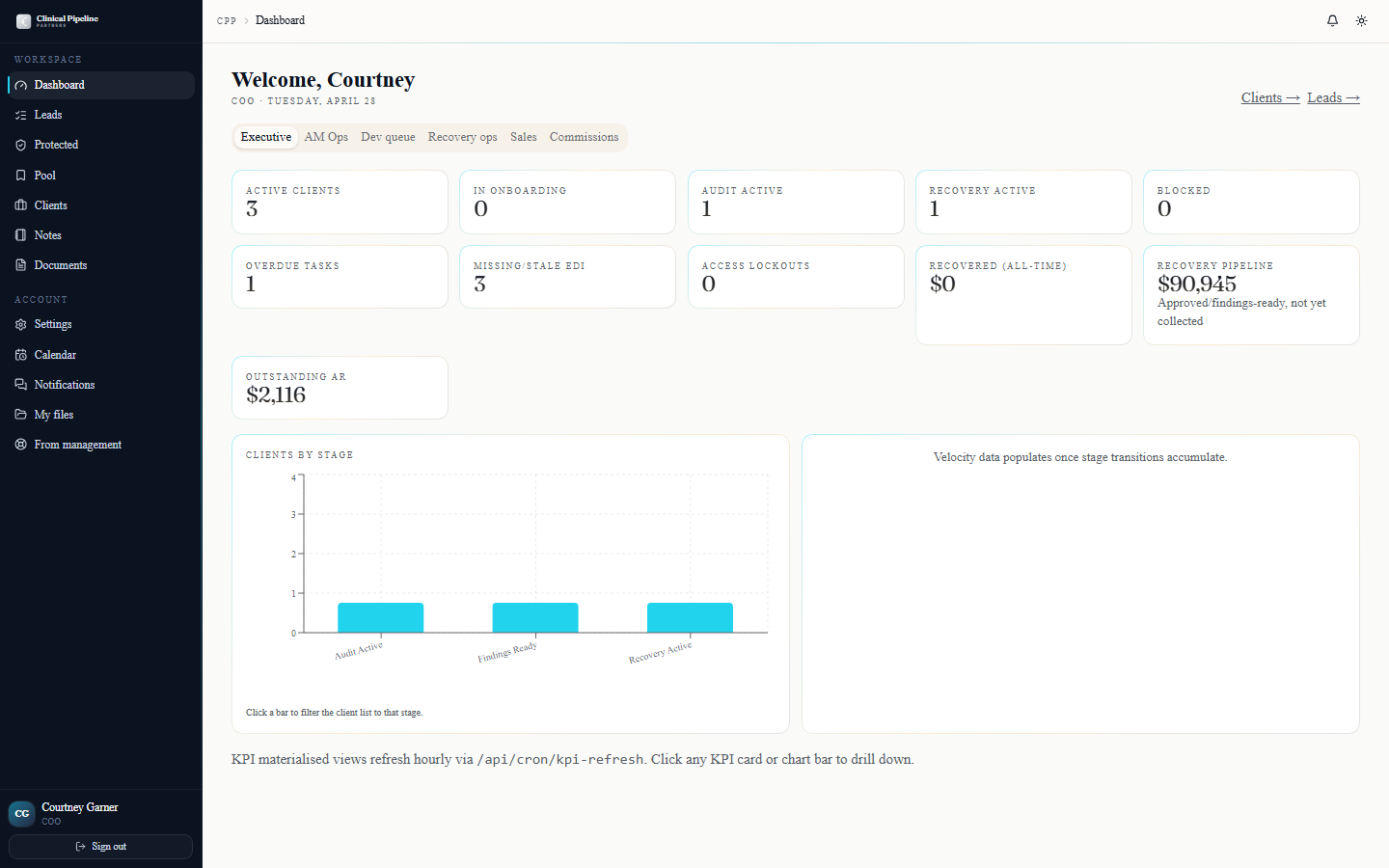
/dashboard opens to the AM Ops tab when you sign in as COO. The dashboard is built for the once-a-day sweep:
/dashboard opens to the AM Ops tab when you sign in as COO. The dashboard is built for the once-a-day sweep:
- Open SLAs — every workflow task assigned to you, ranked by deadline. Hover any row for the full client context.
- Approaching deadlines — tasks due in the next 3 business days, by client.
- Overdue tasks — past deadline, escalated. Each one shows the original SLA + how many days late.
- EDI freshness — clients with EDI access older than 3 days warn yellow; >7 days red; >10 days escalate to Beto.
- Recovery KPI — clients where the identified-to-submitted gap exceeds 15-20 days are flagged as process breakdown candidates.
- Communication gap — clients with no logged communication in 14+ days.
Each card has a "view all" link to a filtered table where you can act in bulk.
- 05
Review recovery entries and RFI submissions
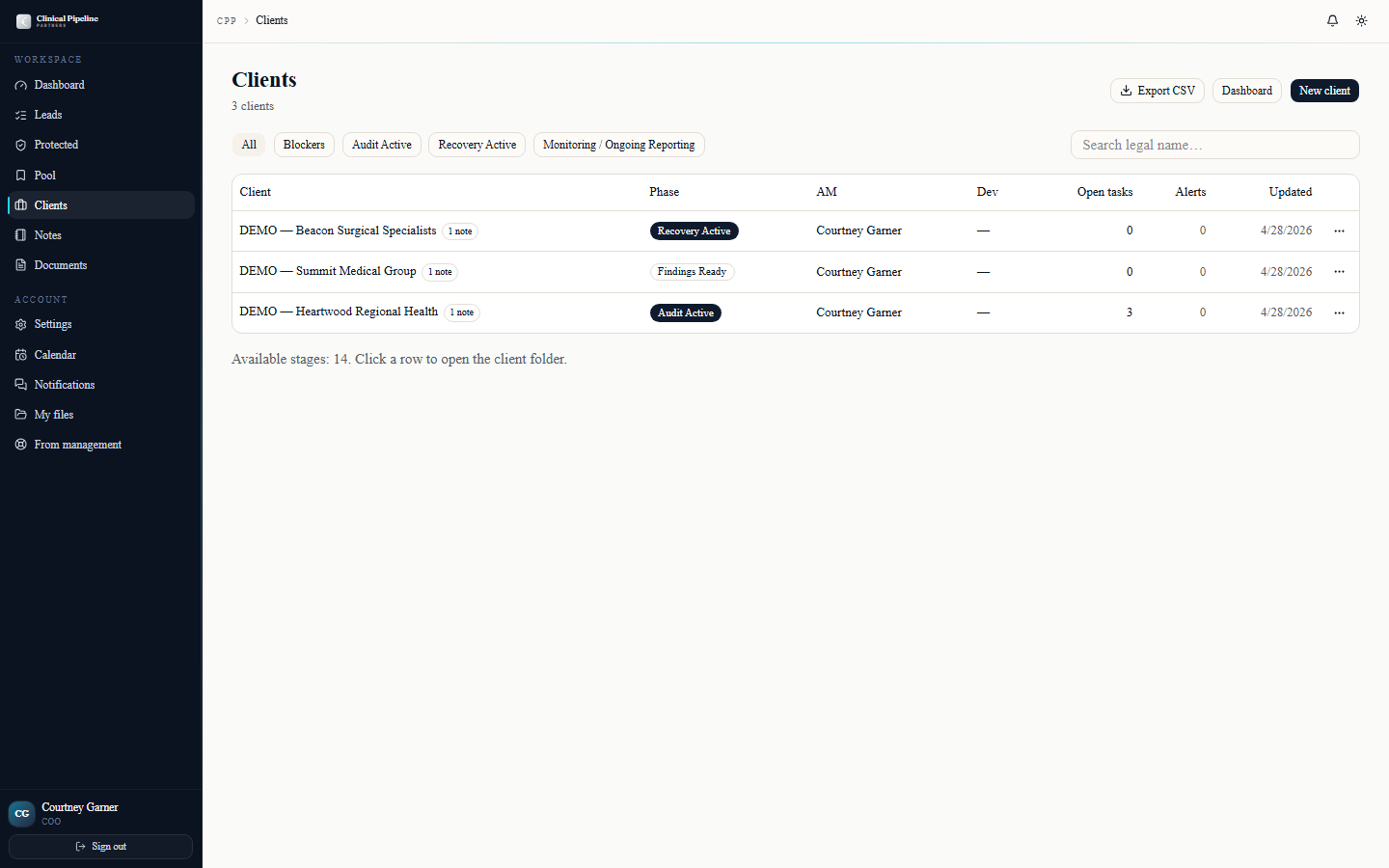
Two adjacent surfaces in the COO daily flow:
Two adjacent surfaces in the COO daily flow:
Recovery review. On any client folder open the Recovery tab. Each row is a recovery_entry Tapa logged from a verified-835. Columns: payer, date, identified amount, submitted amount, recovered amount, our fee snap (30% / 24% / 0% pilot), status. Your job is to review fee correctness, flag anomalies for Beto, and confirm the entry before it rolls into the next monthly invoice.
RFI dual-delivery. Onboarding meetings include an RFI (Request for Information) that the client either fills on the meeting-attached PDF or via the magic-link digital fillable form. Either path auto-saves to the client folder under Documents tagged "RFI submission." Open the RFI tab on the client folder for a parsed, structured view of the responses.
- 06
RFI dual-delivery — Intake tab end-to-end
![The Intake (RFI) tab on /contract-runs/[id] with parsed web-form responses and the Upload PDF return button.](/instructions-img/coo/06-rfi-intake-tab.png)
Every contract run ships an RFI through both delivery paths simultaneously. Both feed rfi_submissions:
Every contract run ships an RFI through both delivery paths simultaneously. Both feed
rfi_submissions:- Digital web form at
/rfi/{token}— public, JWT-gated, 4-page questionnaire mirroring the 7 sections (4 contact blocks + Program Scope + Data & File Delivery + Systems & Access + Reporting & Communication + Business Information + Approvals). 800ms autosave fires while the prospect types; a "Saved {timeago}" indicator confirms persistence. - AcroForm fillable PDF — generated server-side, attached to the Resend confirmation email, also linkable from the calendar invite for
/book/courtney/cs-onboarding.
Open
/contract-runs/[id]and switch to the Intake (RFI) tab. You'll see:- Parsed digital responses — structured per-section view of whatever the prospect filled on the web form, with a timestamp and an "edit history" link to the autosave trail.
- Upload PDF return — drop the returned fillable PDF here when the prospect emails it back instead of using the digital form. The system parses the AcroForm fields and merges them into the same structured view.
- Re-send RFI — regenerates a fresh PDF + magic link and ships a dedupe-bypassing email when scope changes.
- Digital web form at
- 07
Oversee live contract runs
![The /contract-runs/[id] detail page from a COO view with sender controls and the Intake (RFI) tab.](/instructions-img/coo/07-contract-run-oversight.png)
Senior reps trigger runs from /contract-runs/new; your job is to ride them through to signed and onboarding.…
Senior reps trigger runs from /contract-runs/new; your job is to ride them through to
signedand onboarding. Open/contract-runs/[id]for any in-flight run to see live signing status (which slots are signed, which are open) and the reminder schedule indicator.Three sender controls — same as the senior rep, available to you for cover:
- Resend reminder now — immediate dedupe-bypassing email to whichever signers haven't completed.
- Cancel send — pulls the run with a reason field. Use sparingly; the audit trail captures who killed it.
- Re-send RFI — regenerates the fillable PDF + magic link and ships a fresh email.
When all required slots finalize, the lifecycle hook flips the run to
signedand emails the senior rep + you ("Ready for onboarding scheduling: {facility}"). The booking page/book/courtney/cs-onboardingaccepts?contractRunId=so the calendar invite includes the RFI dual-delivery block (digital link + PDF reference) automatically. - 08
Notifications, settings, and quick-actions
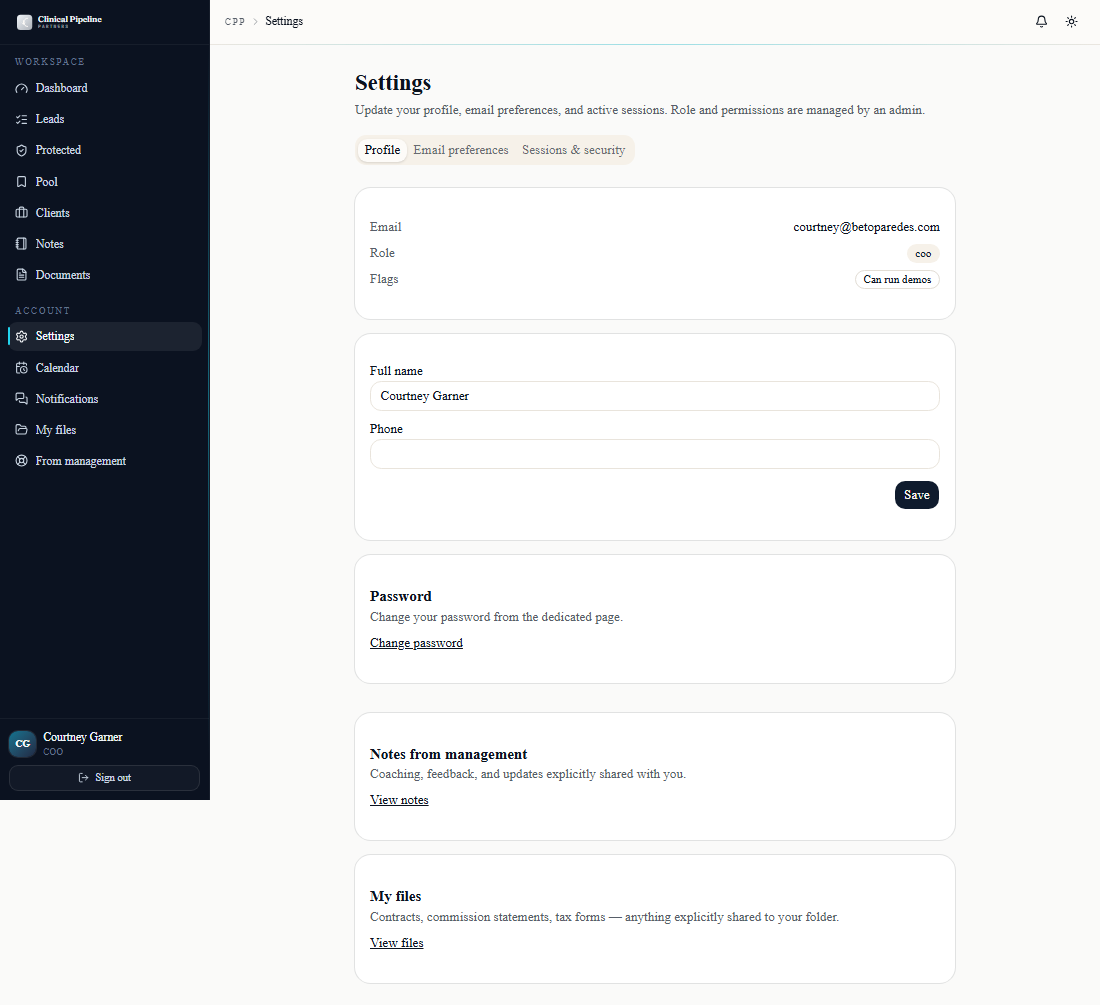
The bell icon in the TopBar opens a popover with the last 7 days of role-relevant events: RFI submissions, contract-run status flips, signing-session bounces, and any reminder emai…
The bell icon in the TopBar opens a popover with the last 7 days of role-relevant events: RFI submissions, contract-run status flips, signing-session bounces, and any reminder emails that didn't ship. The list is role-aware so you see the AM ops surface, not the inside-sales chatter.
Open
/settingsto set your defaults — three tabs: Profile (name, photo, default time zone), Email preferences (per-event-type opt-in toggles), and Sessions & security (Sign out everywhereworks today; full session listing is *Coming soon*).Two power tools you'll use daily on the leads and clients tables:
- Three-dot quick-actions menu on each row — disposition, reassign, add note, view audit, all without drilling into the folder.
- Internal notes visibility — the 3-tier model (
shared_with_subject,senior_management,admin_only) is enforced everywhere. Hover the Who will see this? tooltip in the visibility picker to confirm the audience before saving. - Press `?` anywhere in the back office for the keyboard-shortcuts modal.


![The Intake (RFI) tab on /contract-runs/[id] with parsed web-form responses and the Upload PDF return button.](/instructions-img/coo/06-rfi-intake-tab.webp)
![The /contract-runs/[id] detail page from a COO view with sender controls and the Intake (RFI) tab.](/instructions-img/coo/07-contract-run-oversight.webp)
