Role guide
Inside Sales Rep
Works the call queue, dispositions calls with smart callbacks, claims from the lead pool, watches the 45-day protection window.
- 01
Work the call queue
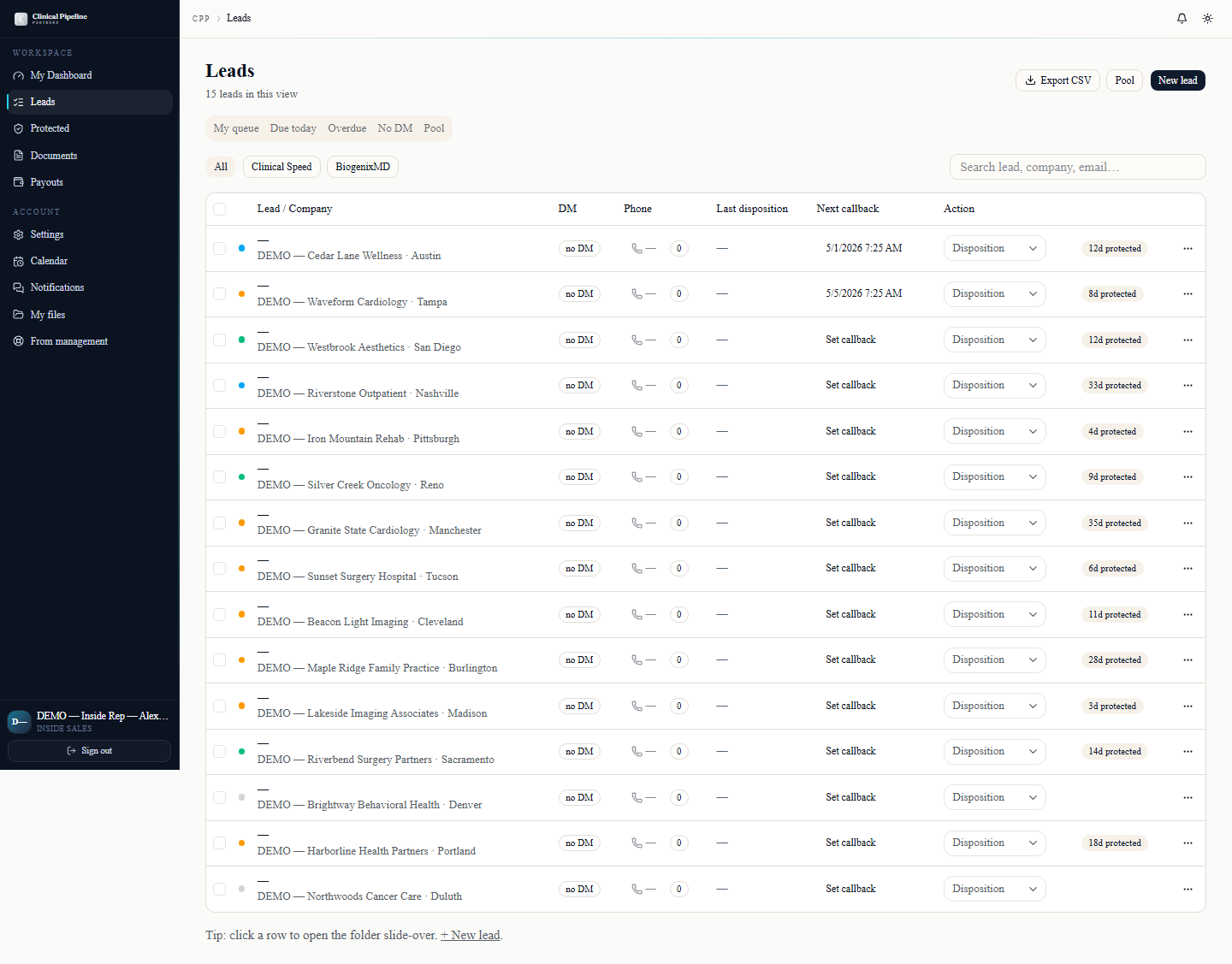
Inside reps live on /leads. The default view is your call queue — leads assigned to you, ranked by next-action priority:
Inside reps live on /leads. The default view is your call queue — leads assigned to you, ranked by next-action priority:
- Callbacks scheduled for now (top of queue, highlighted).
- Fresh inbound leads (created in the last 24h, not yet contacted).
- Active leads with no recent activity (cold-warm).
- Long-tail leads (older than 14 days, deprioritized).
Each row shows facility name, decision-maker, opportunity (CS or BMD), last disposition, and the time-since-last-contact. The list is dense by design — target ~40 leads visible per screen.
Click a row to open the lead folder. The folder has tabs for Contact, Notes, Activity, Files, and Workflow. Most of your day happens on the Activity tab where you log dispositions.
- 02
Disposition a call and stack a callback
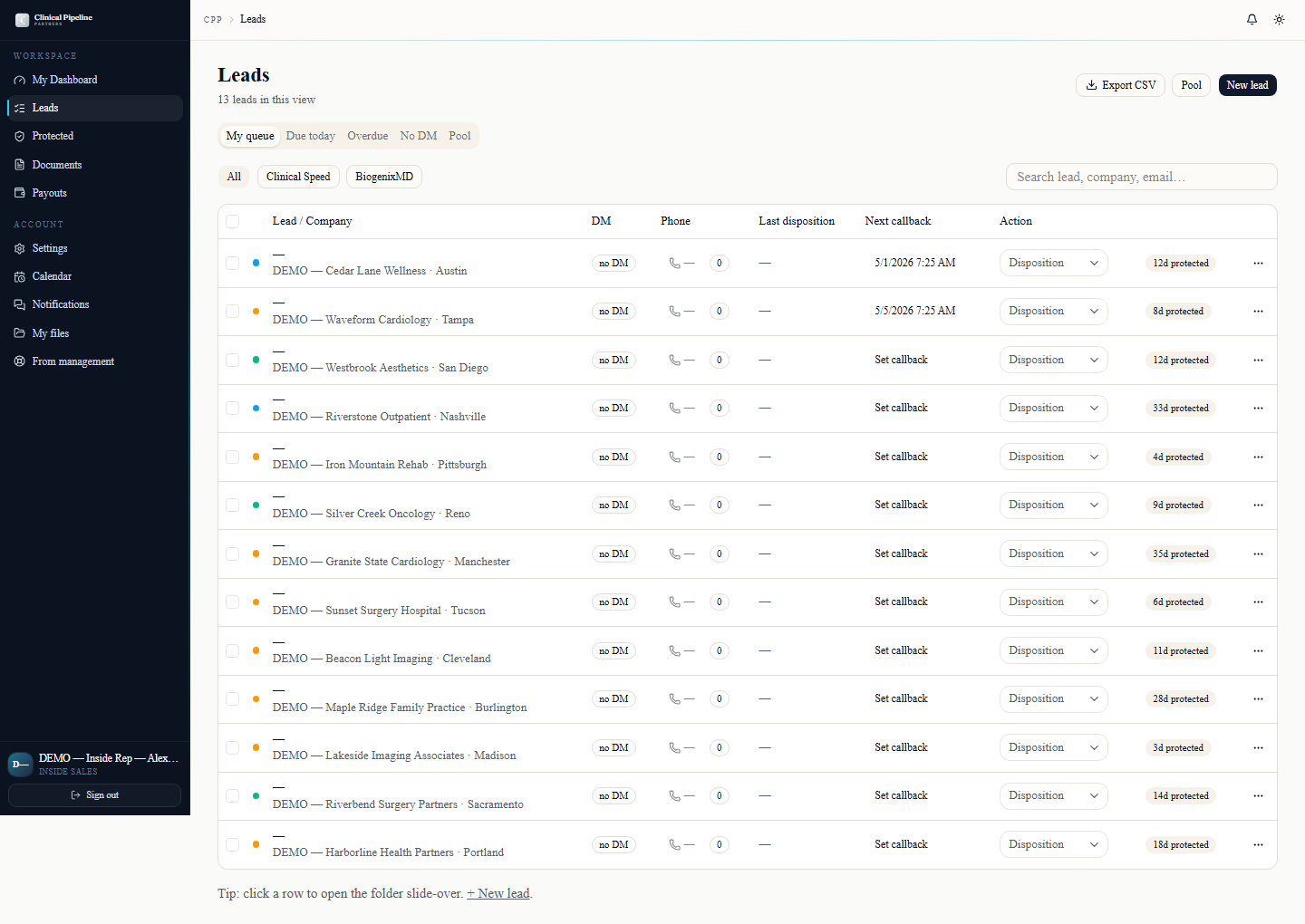
When you finish a call, click Disposition on the lead row or inside the lead folder. The disposition picker is a closed list that maps every outcome to a downstream automation:
When you finish a call, click Disposition on the lead row or inside the lead folder. The disposition picker is a closed list that maps every outcome to a downstream automation:
- Connected — interested → fires the qualification task; lead stays at the top of your queue.
- Connected — not now → schedules a 30-day follow-up automatically.
- Connected — not a fit → moves the lead to the disqualified bucket; the system explains why on the lead's audit trail.
- Voicemail / No answer → bumps a counter; after 3 the lead drops down the queue and prompts you for a different channel (email).
- Wrong number / Bad data → flags for sales-admin review; the lead won't show again in your queue.
- Callback → opens the callback picker.
The callback picker is the smart-stacking part. You pick a date and a 30-min window. The system checks your existing callbacks on that day and won't let you double-book yourself; it shows the next free slot if you ask. Callbacks surface at the top of the queue when their window opens.
- 03
Review notes across leads with the date filter
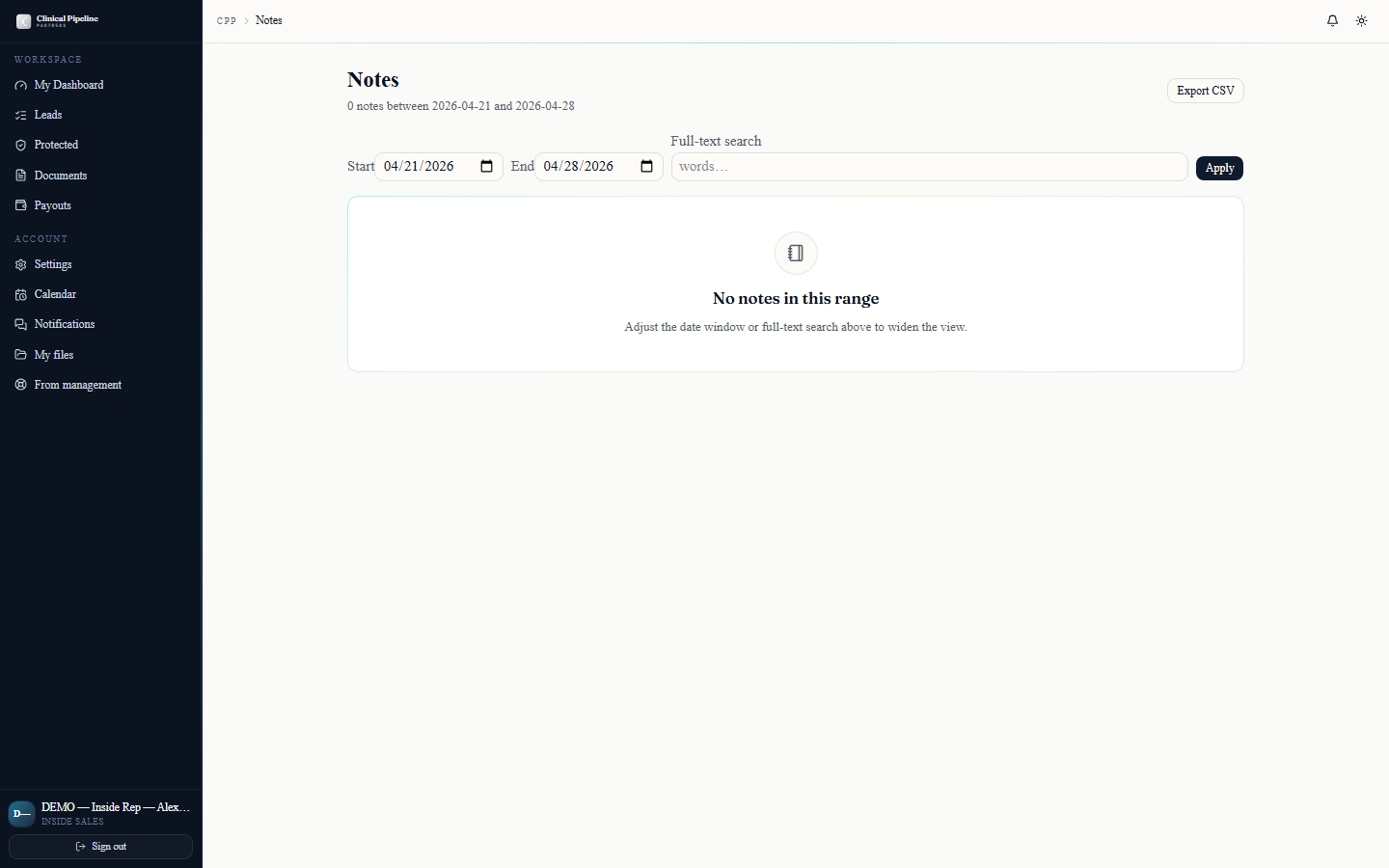
Open /notes for a flat view of every note you've written across every lead, plus every shared note management has left for you.…
Open /notes for a flat view of every note you've written across every lead, plus every shared note management has left for you. The date-range filter at the top defaults to the last 7 days; widen it to a month when you're prepping for a 1:1.
Filters available:
- Date range — start + end pickers.
- Subject type — leads, clients, users, or all.
- Author — yours only, or include team notes you have visibility into.
- Visibility tier — defaults to all visible; you'll never see senior_management or admin_only notes you aren't allowed to see.
Use the CSV export button (top-right) to dump the filtered list into a spreadsheet for review or for a coaching session. The export honors all active filters.
- 04
Claim a lead from the pool
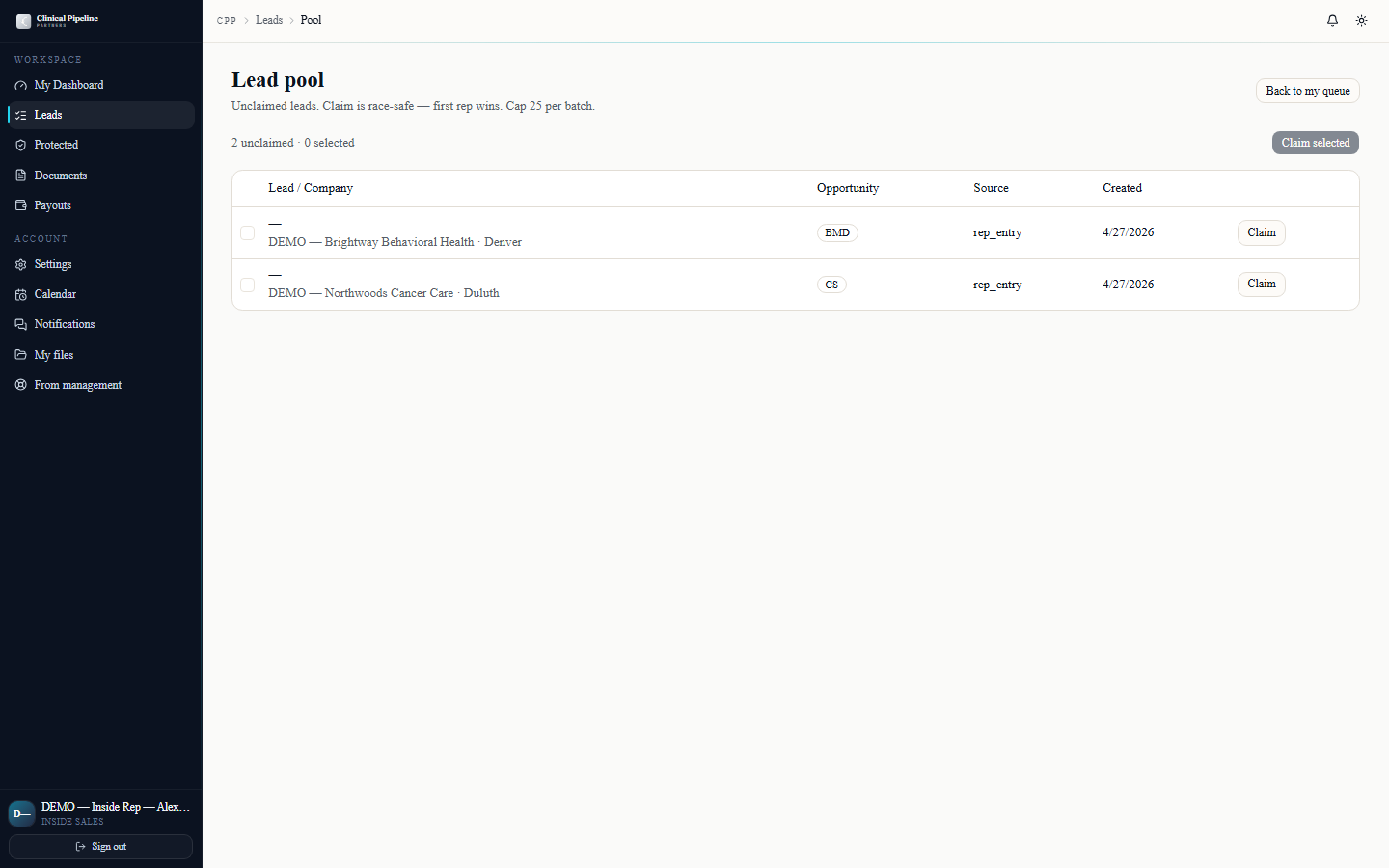
The lead pool at /leads/pool is shared inventory — leads that aren't owned by anyone, surfaced for any inside rep to claim.…
The lead pool at /leads/pool is shared inventory — leads that aren't owned by anyone, surfaced for any inside rep to claim. New uploads, leads released by another rep, and leads that aged out of someone's queue all land here.
Each pool row shows facility name, opportunity, source, and how long it's been in the pool. Click Claim to move the lead into your queue immediately.
Once claimed:
- You become the owner. Your name appears on every subsequent note + disposition.
- The lead enters the 45-day protection window — visible on the public protection list at /leads/protected so other reps don't double-call your contacts.
- The clock for the protection window starts now, not when the lead was originally created.
- 05
Watch the 45-day protection countdown
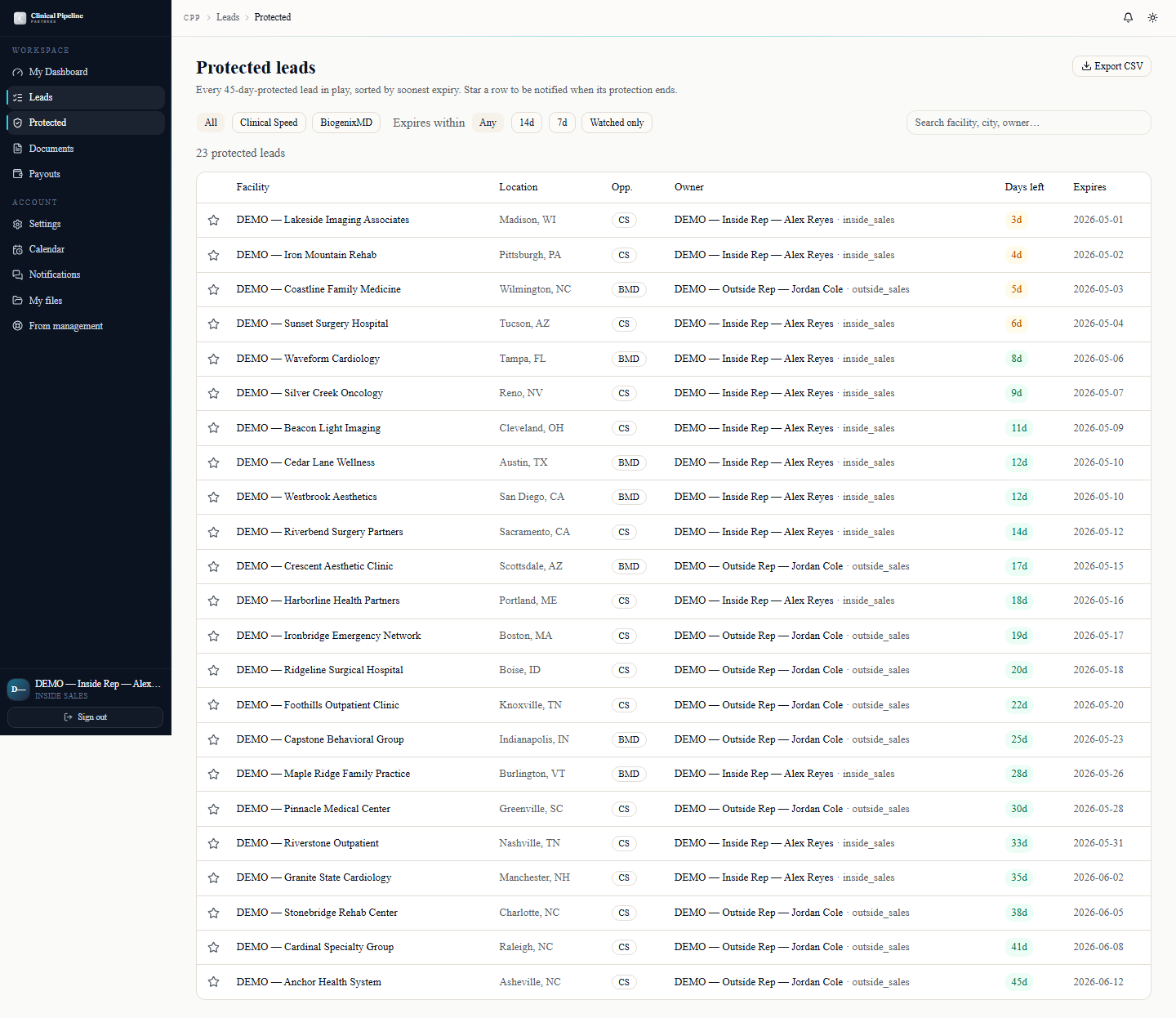
Every lead you own (or claim from the pool) enters a 45-day exclusive window. That window is visible:
Every lead you own (or claim from the pool) enters a 45-day exclusive window. That window is visible:
- On the lead row — a small countdown chip showing days remaining.
- On the lead folder — a large countdown card under the header with the exact expiry date.
- On the public protection list at /leads/protected so every rep sees what's locked and by whom.
Why 45 days: it's a balance between giving you real time to work the opportunity and not letting good leads rot. When the window expires:
- The lead is released back to the pool if there's been no qualifying activity (gameplan call scheduled, contract sent, or stage advanced).
- If you've moved the lead forward, the protection auto-extends — the system uses your activity to keep your claim valid.
- 06
Run bulk lead actions from the table
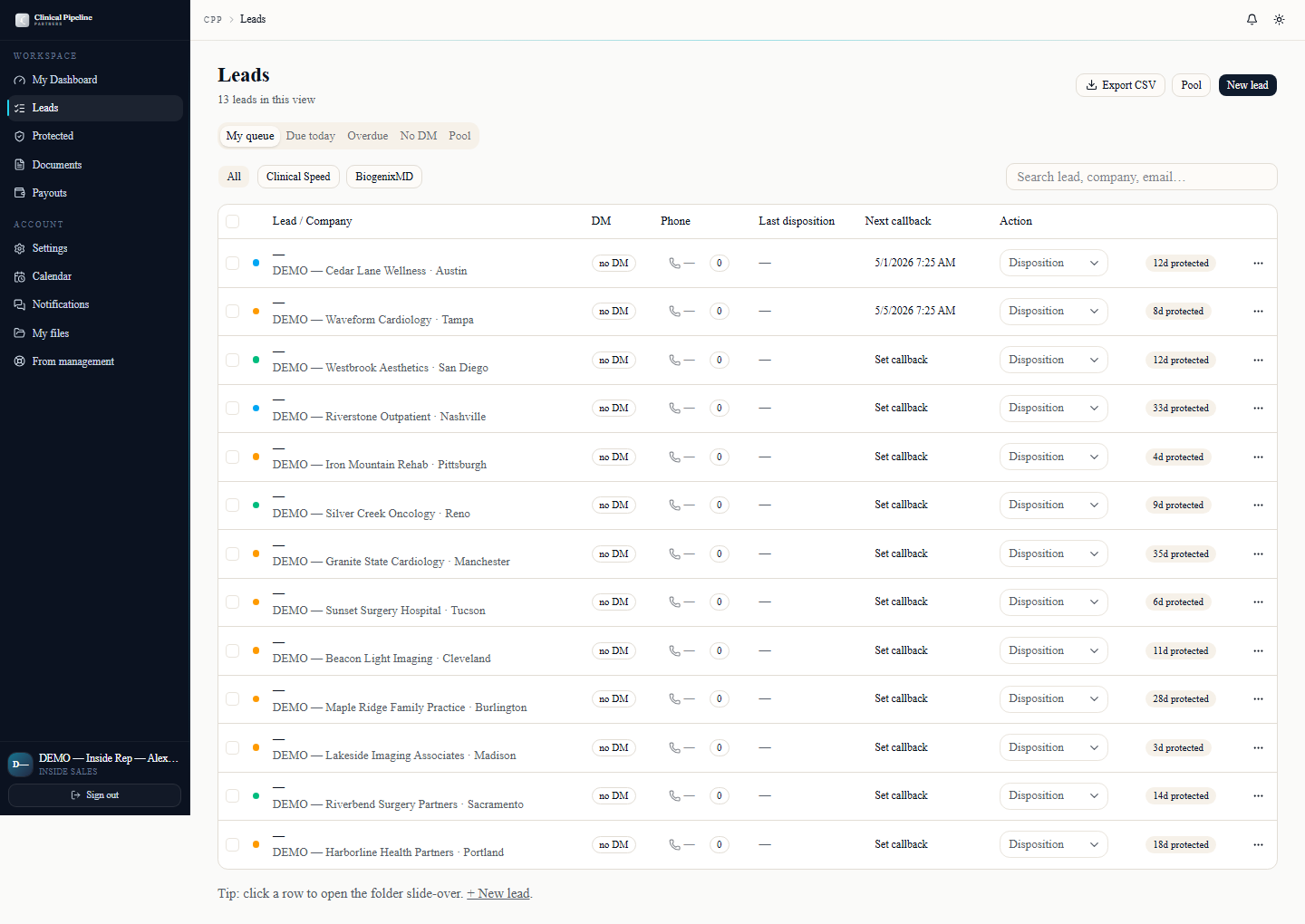
The leads table now ships with multi-select checkboxes. Tick rows and the action bar reveals three bulk operations:
The leads table now ships with multi-select checkboxes. Tick rows and the action bar reveals three bulk operations:
- Reassign to... — opens a user picker; the system enforces RLS and protection windows so you can't bulk-move a lead into a rep who can't legally see it.
- Mark not interested — sets the disposition on every selected lead. Use this when a list arrives that you've already worked elsewhere.
- Add to call queue — drops every selected row into your call queue at the bottom of the stack.
Bulk operations write the same activity-log entries as single-row actions, plus a "bulk action" marker so audit can answer "who moved these 40 leads?" without spelunking. If a row in the selection can't be acted on (e.g., RLS denies, protection window blocks reassign), the action bar surfaces an inline error with the count of skipped rows — the rest still go through.
- 07
Undo a disposition within 5 seconds
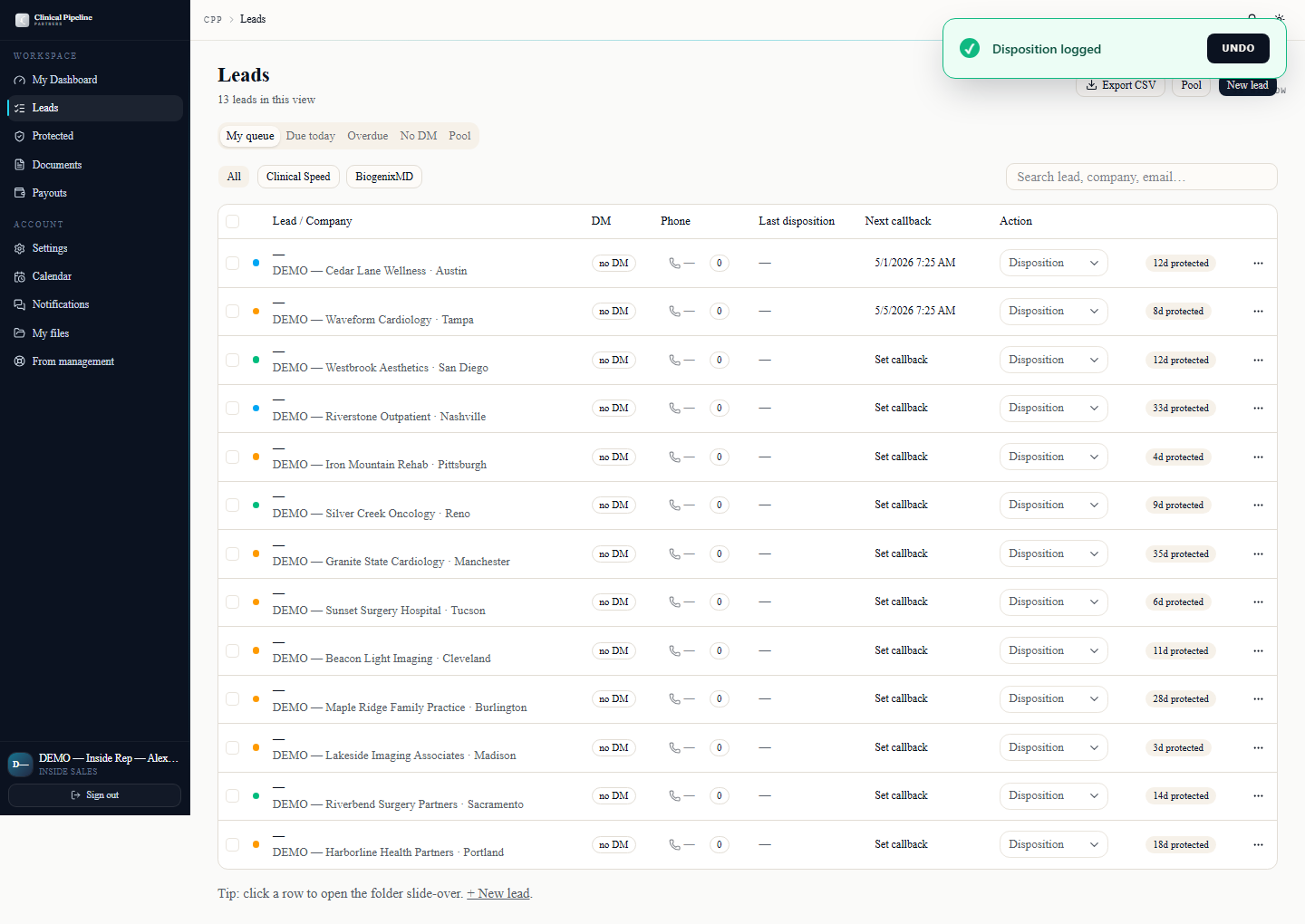
Every time you disposition a call, a 5-second Undo toast appears in the bottom-right corner.…
Every time you disposition a call, a 5-second Undo toast appears in the bottom-right corner. Click Undo before the toast disappears and the system reverses both the disposition itself and any auto-created callback or downstream automation that fired off the back of it.
This matters because dispositions trigger automation immediately:
- Connected — not now schedules a 30-day follow-up the moment you click.
- Callback stacks the callback into your queue based on the window you picked.
- Wrong number / Bad data flags the lead for sales-admin review.
If you misclick (it happens — the picker is dense), Undo cleanly reverses the chain. After the 5 seconds elapse the toast disappears and the disposition becomes part of the audit trail. From there you can still re-disposition the lead with the correct outcome, but the original "wrong" disposition stays on the activity log with a note that it was superseded.
- 08
Pipeline snapshot + protected leads CSV
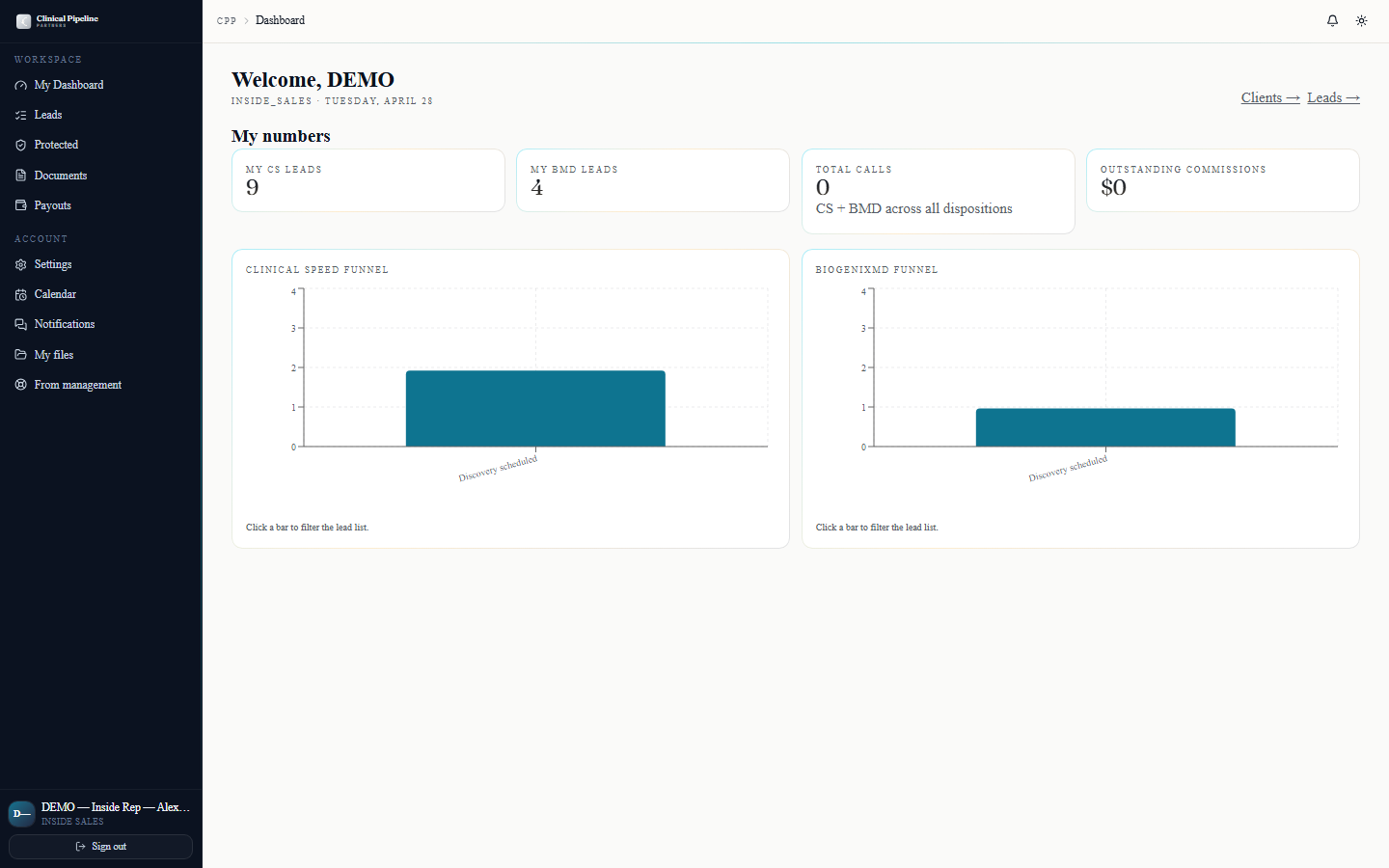
Your /dashboard opens with the rep pipeline snapshot above the call queue — three KPI cards: callbacks-this-week, discovery-next-7d, and deals-closing-30d.…
Your
/dashboardopens with the rep pipeline snapshot above the call queue — three KPI cards: callbacks-this-week, discovery-next-7d, and deals-closing-30d. Click any number to drop into the filtered list; the snapshot refreshes whenever a callback fires, a stage transitions, or a disposition lands.The protection list at /leads/protected is public to every rep so you can see what's locked and by whom. Two filters on top:
- `?expiring_soon=1` — surfaces only leads inside 7 days of expiry. Use it as a poaching radar; when a window expires without qualifying activity, the lead releases back to the pool and you can claim it.
- Export CSV — pulls the current view (with filters applied) for offline planning.
- 09
Notifications, quick-actions, and keyboard shortcuts
The bell icon in the TopBar opens a popover with the last 7 days of inside-sales-relevant events: callback windows opening, leads released back to the pool, claim-from-pool confirm…
The bell icon in the TopBar opens a popover with the last 7 days of inside-sales-relevant events: callback windows opening, leads released back to the pool, claim-from-pool confirmations, and any reminder emails that bounced.
Three time-savers you'll lean on:
- Three-dot quick-actions menu on each leads-table and clients-table row — disposition, add note, callback, view audit, all without drilling into the lead folder.
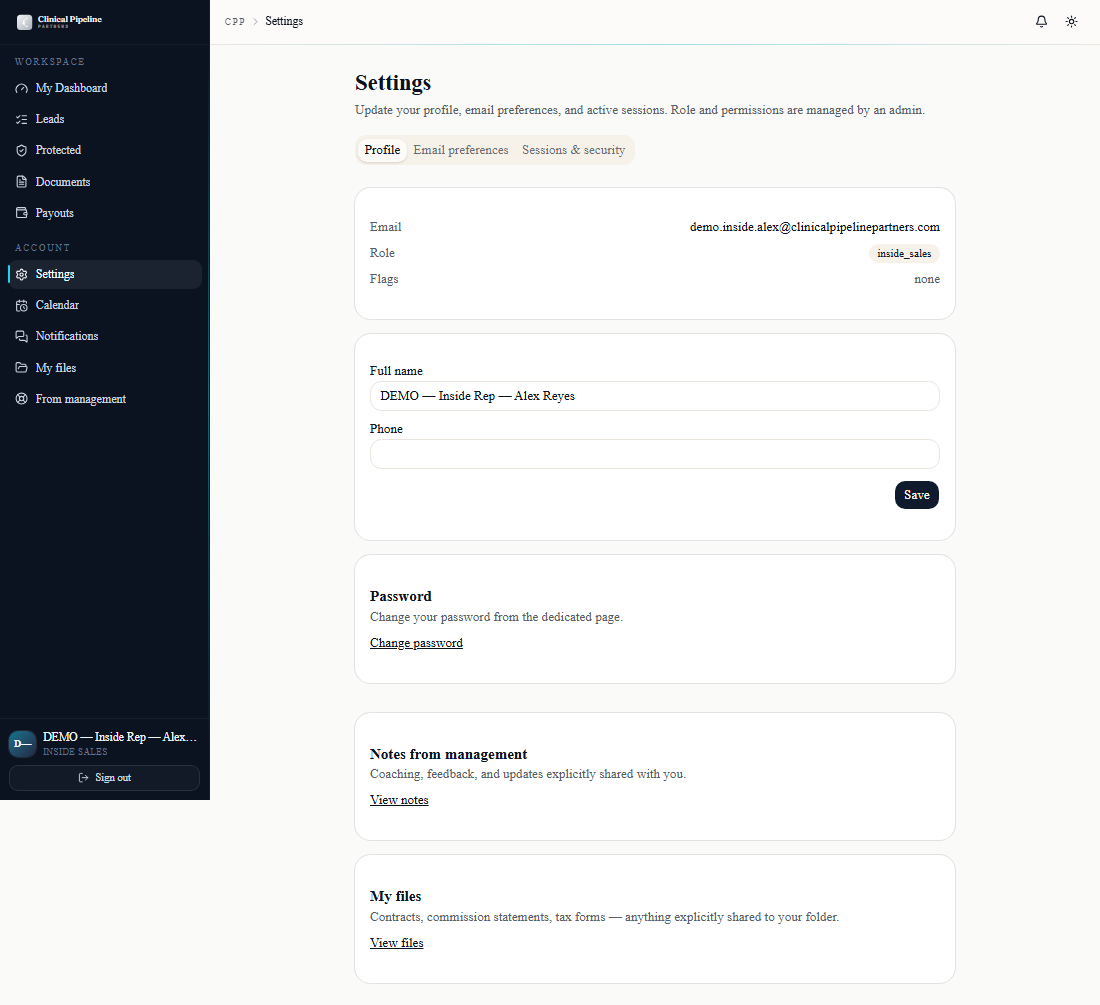
- `/settings` — three tabs (Profile, Email preferences with per-event-type toggles, Sessions & security with
Sign out everywhereworking today and full session listing *Coming soon*). - `?` anywhere in the back office opens the keyboard-shortcuts modal — jump-to-search, new-lead, the disposition keys, and navigation jumps are all listed there. Bind these into muscle memory; they're a meaningful speedup once you do.


