Role guide
Outside Sales Rep
Applies via referral link → signs ISA + W-9 → enters leads, schedules gameplan calls, tracks payouts and recruits a downline.
- 01
Apply via your recruiter's referral link
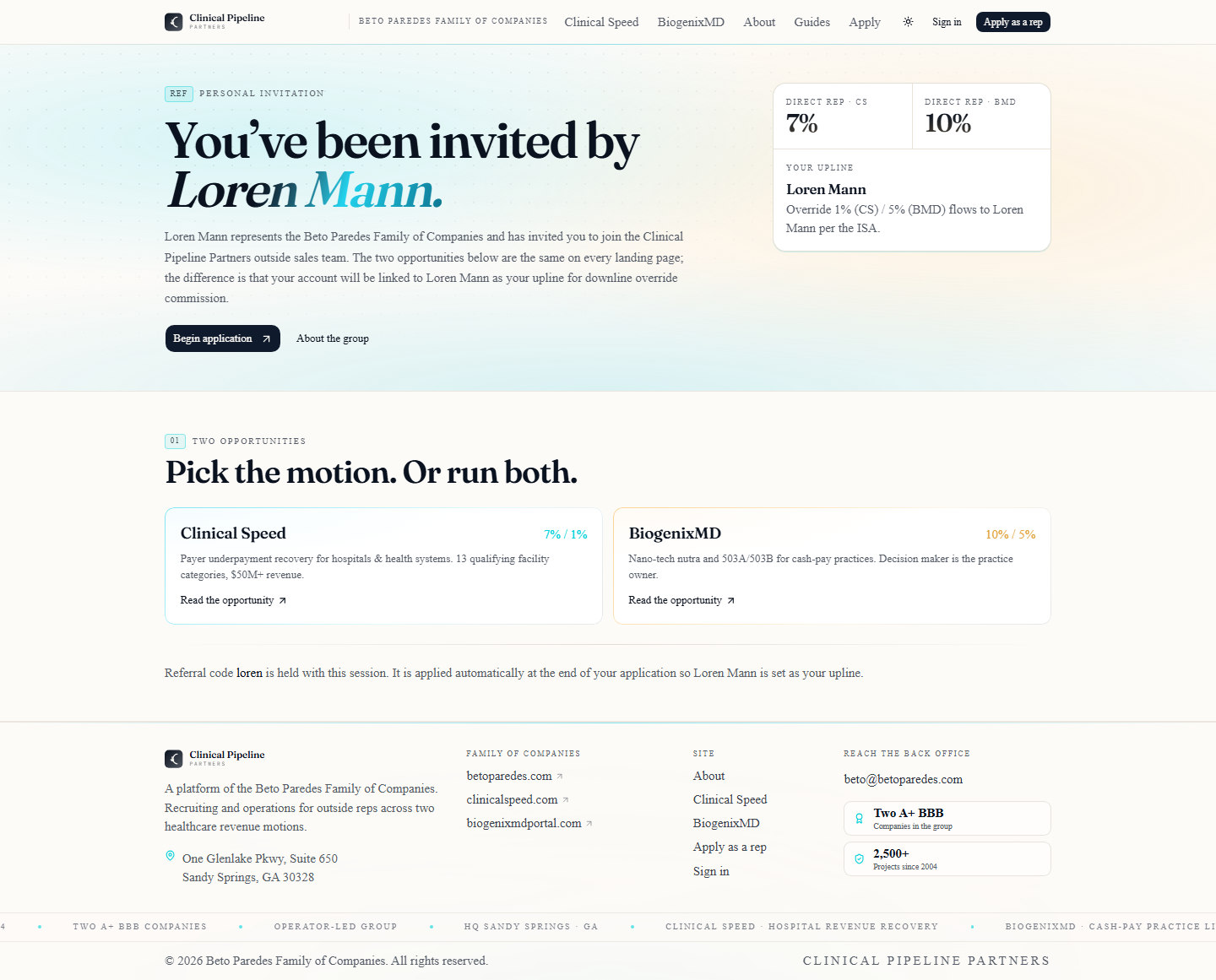
Outside reps join CPP through a referral link from someone already in the network — usually https://clinicalpipelinepartners.com/r/{ref} where {ref} is the referrer's short code.…
Outside reps join CPP through a referral link from someone already in the network — usually
https://clinicalpipelinepartners.com/r/{ref}where{ref}is the referrer's short code. Visiting the link drops a 30-day cookie that automatically credits the upline override on every commission you earn for life.If you don't have a referral link, use Apply on the public site. You can still be approved, you'll just default to a no-upline placement.
The apply form collects name, email, phone, your two-letter state, and which opportunity you're focused on (Clinical Speed, BiogenixMD, or both). We don't ask for a Social Security number here — that comes later on the W-9 inside the e-sign flow.
- 02
Sign the Independent Sales Rep Agreement (ISA)
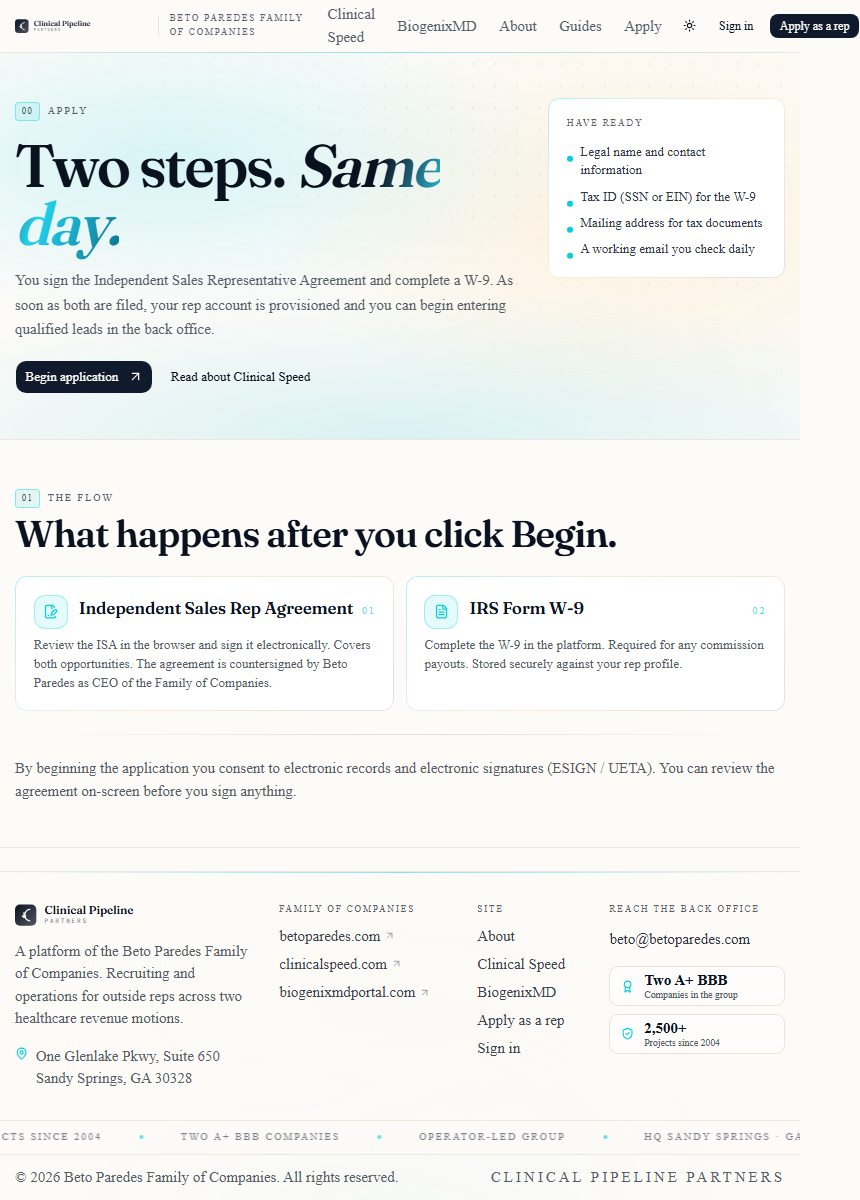
After you submit the apply form you receive a one-time signing link by email. Open it.…
After you submit the apply form you receive a one-time signing link by email. Open it. The link is a signed JWT scoped to your session and expires in 7 days; if it lapses you can ask your recruiter or admin to re-issue.
The ISA covers:
- Commission structure — 7% direct + 1% downline override on Clinical Speed; 10% direct + 5% downline override on BiogenixMD.
- Decision-maker rules — leads only count when the qualifying decision-maker title (CFO, CEO, VP of Revenue Cycle, etc.) is captured. The agreement names the protected title list.
- Lead protection — once you submit a lead and it clears the dedup queue, you have a 45-day exclusive window to work it. That window is shown publicly on the protection list so other reps don't waste time pursuing the same target.
You walk page by page in the in-browser PDF preview, draw or type your initials on each page, sign the final page, and submit. Beto's countersignature is applied automatically by the e-sign engine, the executed PDF is emailed to you, and a copy is filed in your folder.
- 03
Sign your W-9
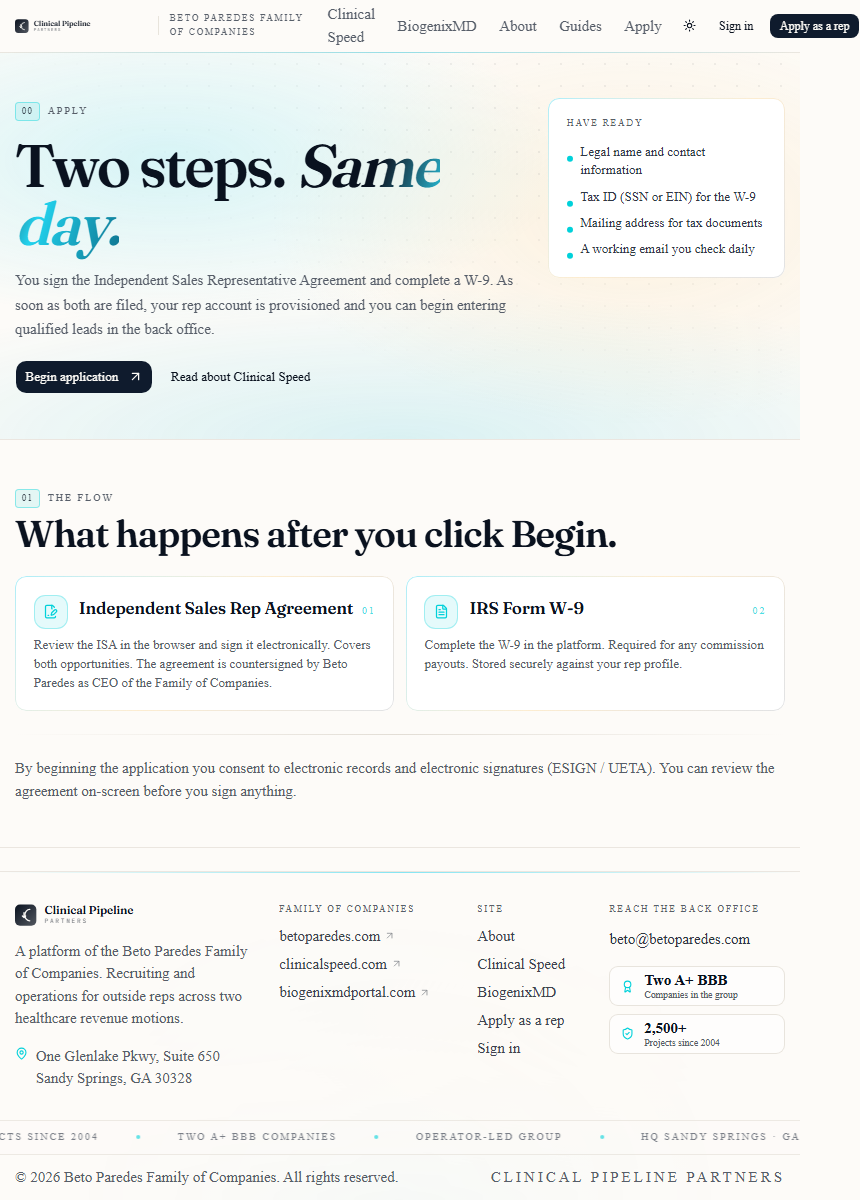
Right after the ISA finalizes, the e-sign engine pushes you into the IRS W-9 flow.…
Right after the ISA finalizes, the e-sign engine pushes you into the IRS W-9 flow. We use the official IRS AcroForm and stamp it programmatically with your typed entries — no third-party PDF service touches your tax data.
You'll be asked for:
- Legal name (line 1) — must match your tax filings.
- Business name / DBA if applicable.
- Federal tax classification — most outside reps select Individual / Sole Proprietor.
- Address — the address we mail any 1099 to.
- TIN / SSN — collected on the final page only, never displayed back to anyone other than admins, and stored encrypted at rest.
After signing, your account flips into the pending admin approval state. An admin reviews the application + the executed contracts and clicks Approve. You'll get a welcome email with a magic-link to set your password and a link to your dashboard.
- 04
First login: the rep dashboard
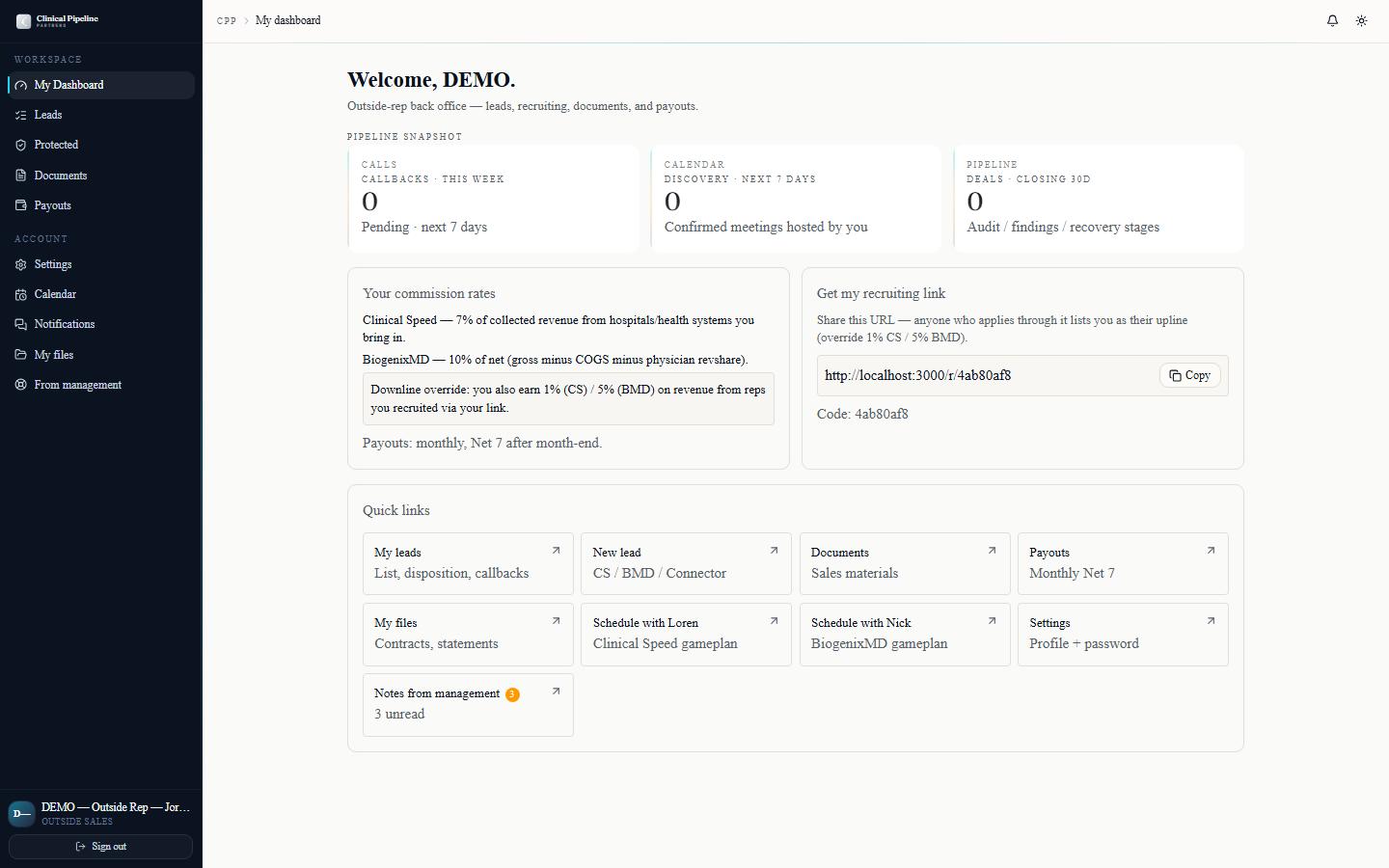
When you sign in for the first time you land at /rep. This is your home base.
When you sign in for the first time you land at /rep. This is your home base.
The top of the page shows three numbers that matter to you every day:
- Active leads you own and are still working.
- In protection — leads in the 45-day exclusive window.
- Estimated payout for the current commission month, based on what's closed and verified so far.
Below that you have quick links to:
- Enter a lead — opens the new-lead form pre-filled with you as the owner.
- Your leads — all leads you own, filterable by stage and opportunity.
- Payouts — your commission ledger for past months, plus the running tally for this month.
- Files — anything Beto, the COO, or admin has shared with you (one-pagers, talk tracks, contract previews).
- Recruit link — your
/r/{your_code}URL plus a copy button. - Notes from management — any internal notes admins have left you that are flagged shared. Senior-management or admin-only notes never appear here by design.
- 05
Enter a Clinical Speed lead with a decision-maker
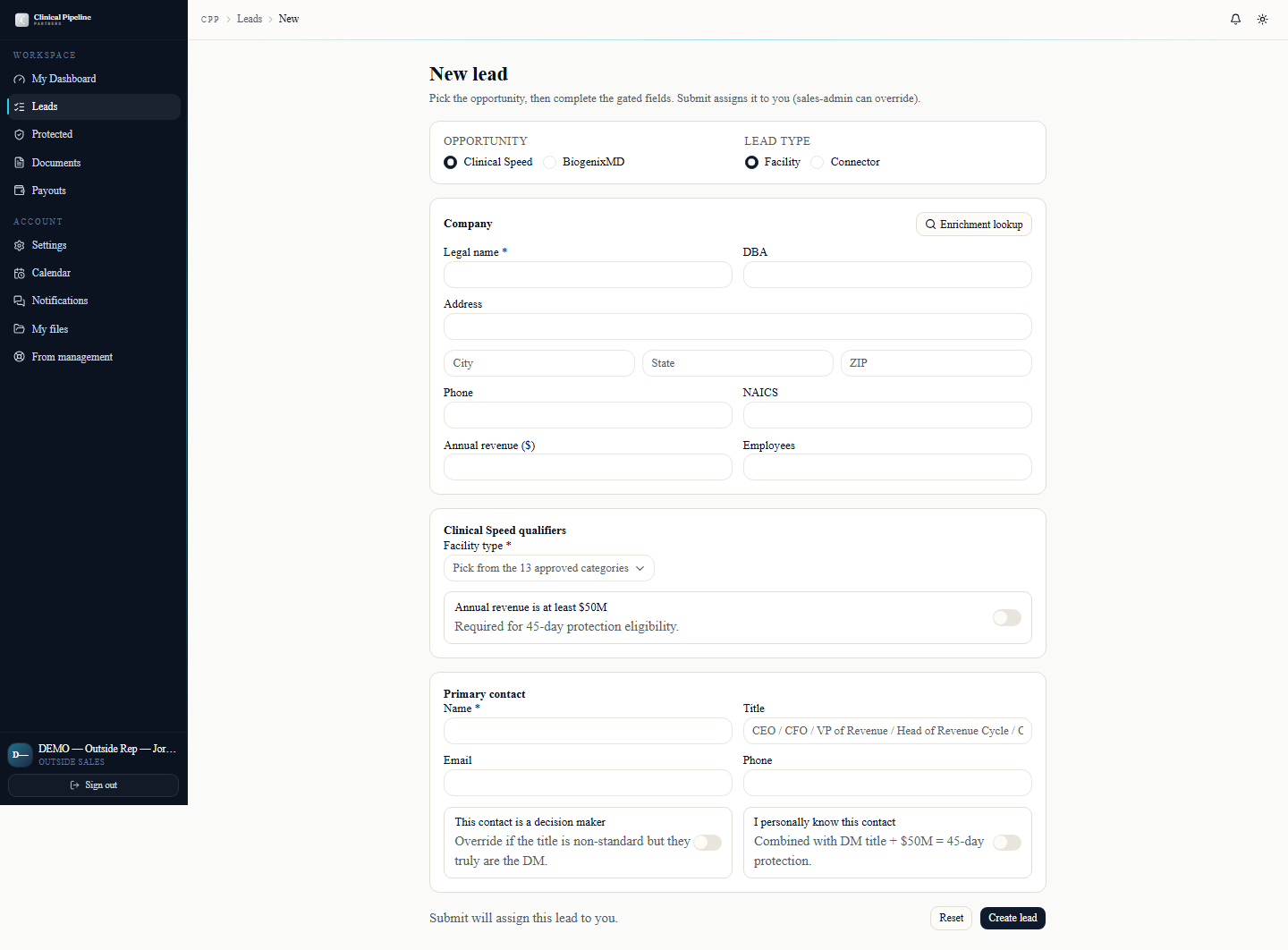
From the dashboard click Enter a lead or open /leads/new. The form is the same one inside reps use, with stricter qualification gates for Clinical Speed:
From the dashboard click Enter a lead or open /leads/new. The form is the same one inside reps use, with stricter qualification gates for Clinical Speed:
- Facility name — the hospital or health-system entity.
- Facility type — closed dropdown of the 13 allowed CS facility categories. If your prospect doesn't fit, the lead won't qualify for commission.
- Address — used by the dedup engine to detect a near-match against any existing CS lead in the system.
- Decision-maker contact — name, title, email, phone. Title must match one of the protected DM titles (CFO, CEO, VP of Revenue Cycle, etc.) — otherwise the lead is captured but flagged ineligible until you upgrade the DM.
- Qualifying facts — short prompts confirming the facility takes commercial insurance, is open today, and meets minimum-volume thresholds.
When you submit, the dedup engine runs trigram matching on name + address + phone. Three things can happen:
- Clean match — lead is yours, you enter the 45-day protection window immediately.
- Pending review — there's a near-match against another rep's lead. Sales admin sees it in the conflict queue and rules in your favor or the other rep's. You'll get an email both ways.
- Hard duplicate — exact match. Lead is rejected with a one-line reason and a link to the existing record's protection expiry.
- 06
Schedule the gameplan call with Loren
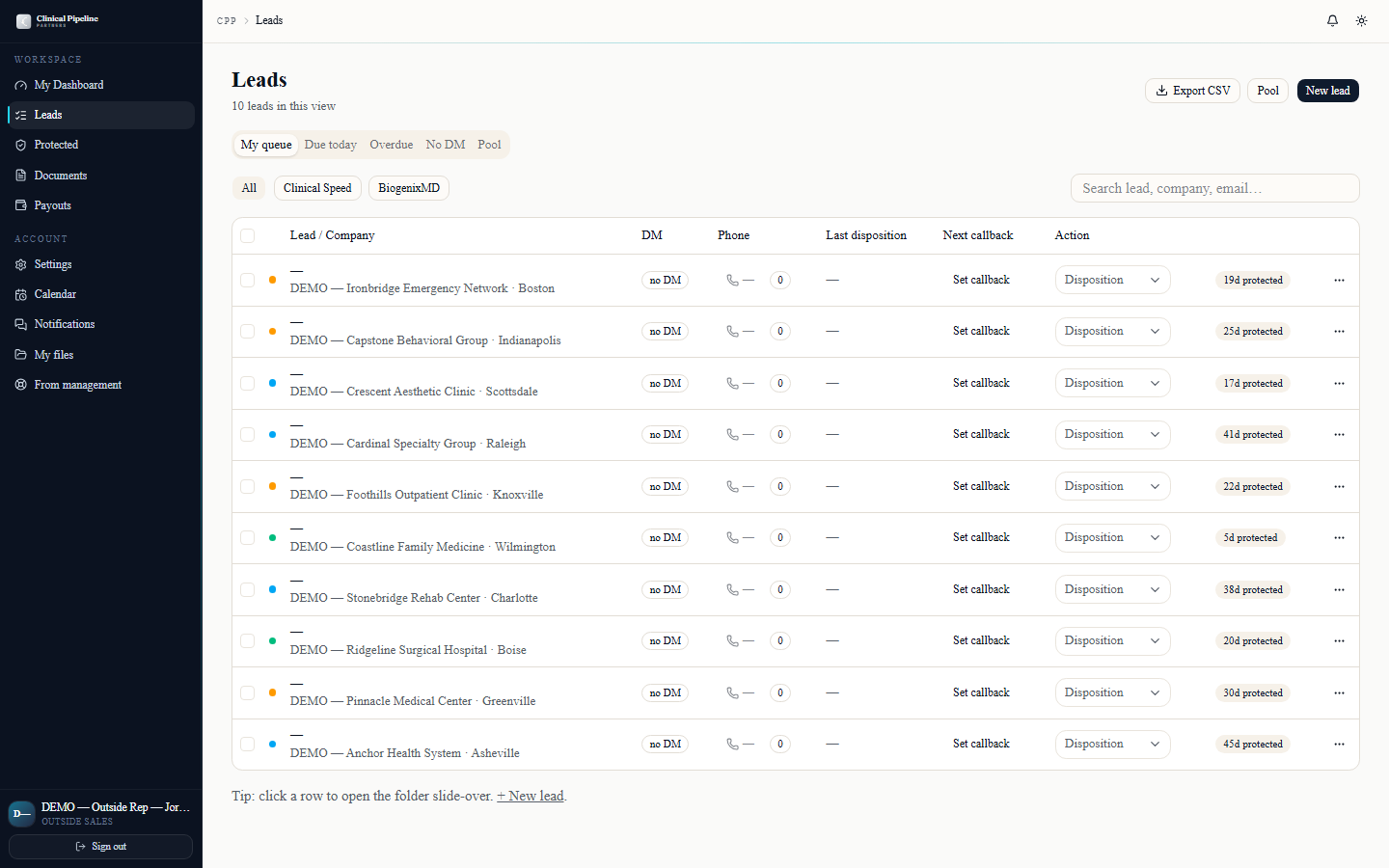
Once a Clinical Speed lead has a confirmed decision-maker and qualifying facts, the next step is the gameplan call with Loren Mann (EVP, Clinical Speed).…
Once a Clinical Speed lead has a confirmed decision-maker and qualifying facts, the next step is the gameplan call with Loren Mann (EVP, Clinical Speed). This is where Loren confirms fit, walks the DM through the audit motion, and lines up the contract package.
You initiate the gameplan call from the lead's folder page. There's a Schedule gameplan call button that opens Loren's booking page at
/book/loren/gameplan.When the booking flow lands you'll see Loren's free slots over the next 14 business days. Pick one, confirm the lead context, and the system fires:
- A Google Calendar invite to you, Loren, the DM, and (optionally) Beto.
- A 24h reminder + a 2h reminder by email.
- A workflow record with the call deadline tracked against Loren's SLA.
If the call goes well, Loren marks the lead gameplan complete and the next stage opens up: discovery scheduling, then the client contract bundle.
- 07
Track payouts and use your recruit link
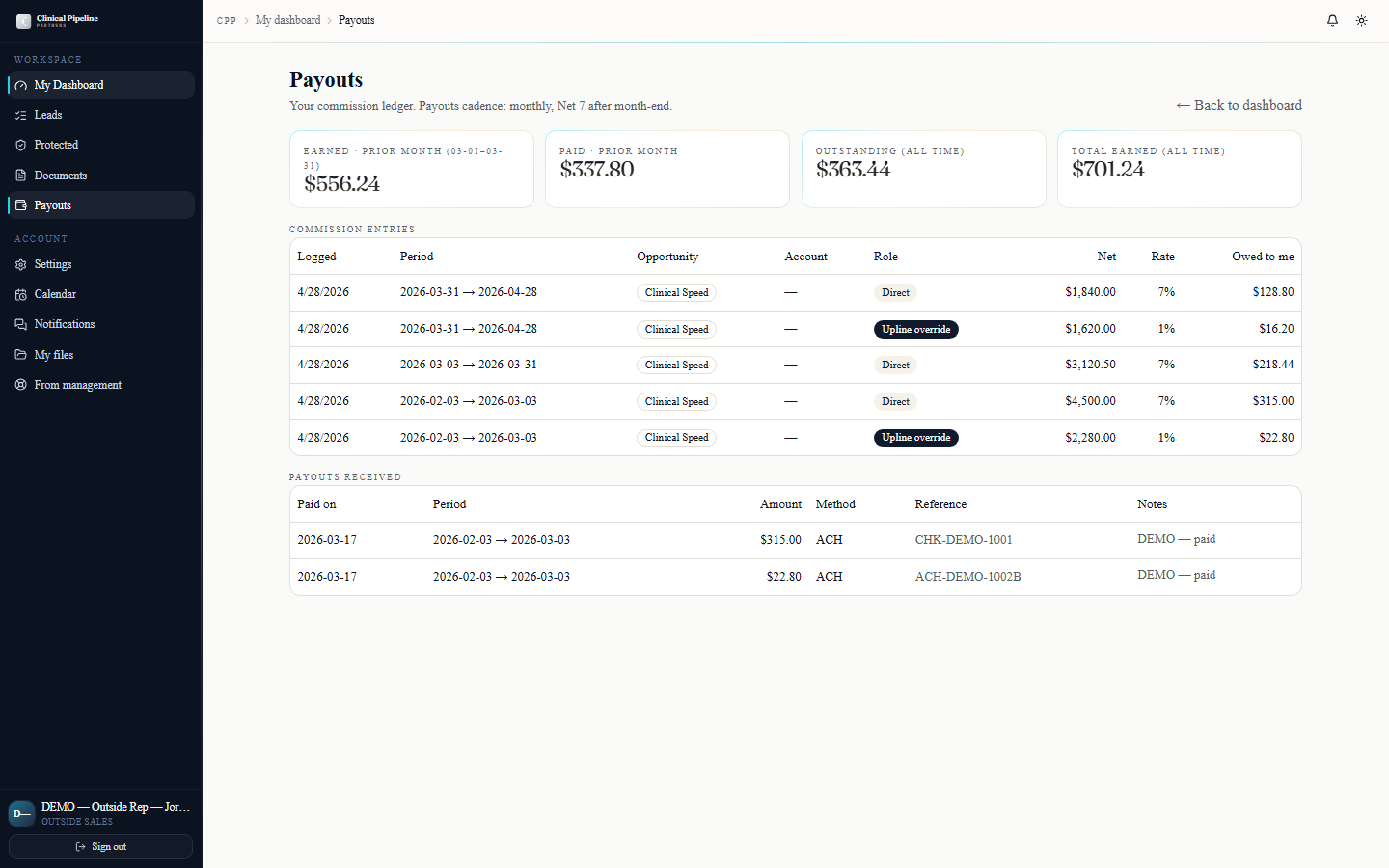
Every month on the 1st (cron at 06:00 UTC) the commissions engine snaps the prior month's revenue, computes your direct + downline override, and creates a payout record visible at…
Every month on the 1st (cron at 06:00 UTC) the commissions engine snaps the prior month's revenue, computes your direct + downline override, and creates a payout record visible at /rep/payouts.
The payouts page shows:
- This month — pro-rated estimate based on closed + verified revenue so far. Updates live as Tapa enters new recovery_entries.
- Last month — finalized payout, status (pending / paid / on hold), and the Net 7 due date.
- Prior months — full history with downloadable detail.
Payouts are Net 7 — the line items are visible on the 1st, the actual ACH lands by the 8th. If anything is on hold (a clawback, a disputed lead) it shows with a one-line reason and the admin who flagged it.
Your recruit link is also on the dashboard. Share it with anyone you'd like to bring into the network — they go through the same apply → ISA → W-9 → admin approval flow, but with you set as their upline. Their CS leads earn you a 1% override; their BiogenixMD leads earn you 5%. Override is one level only — you don't earn on your downline's downline.
- 08
Shared internal notes and files
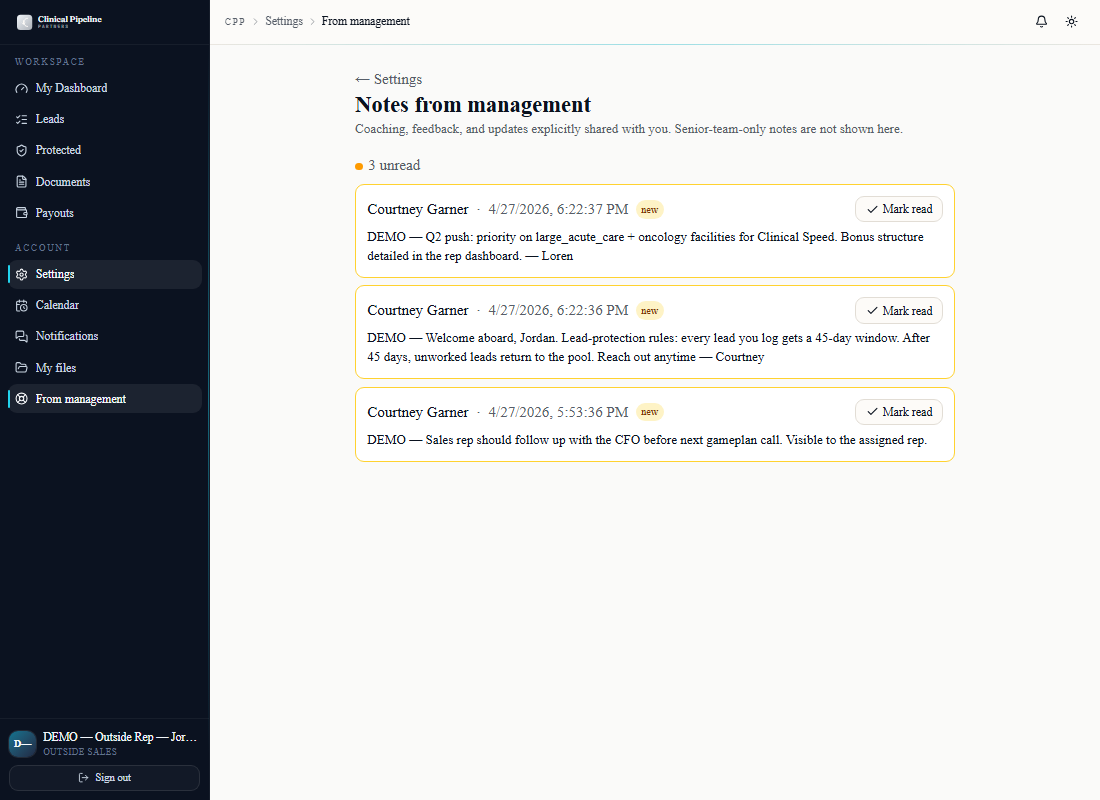
CPP's internal-notes system has three visibility tiers — shared, seniormanagement, and adminonly. As an outside rep you only ever see the shared tier.…
CPP's internal-notes system has three visibility tiers — shared, senior_management, and admin_only. As an outside rep you only ever see the shared tier. Anything tagged senior_management or admin_only is invisible to you by design (and the row-level security rules in the database enforce it; nothing leaks even if you craft a custom URL).
Two surfaces matter for you:
- /settings/notes-from-management — every shared note an admin has left on your user record. Use this when admin sends you a one-off heads-up, a payout adjustment explanation, or a process update.
- /rep/files — every file an admin has shared with you. This is your library: one-pagers, talk tracks, executed-PDF copies of your ISA + W-9, and any sales materials Beto pushes out.
You can also see shared notes and files at the lead level — open any lead you own and the right-side drawer surfaces the shared notes and files attached to that lead. If senior management has left private context, you won't see it; the drawer just shows what you're allowed to see.
- 09
Pipeline snapshot and notifications
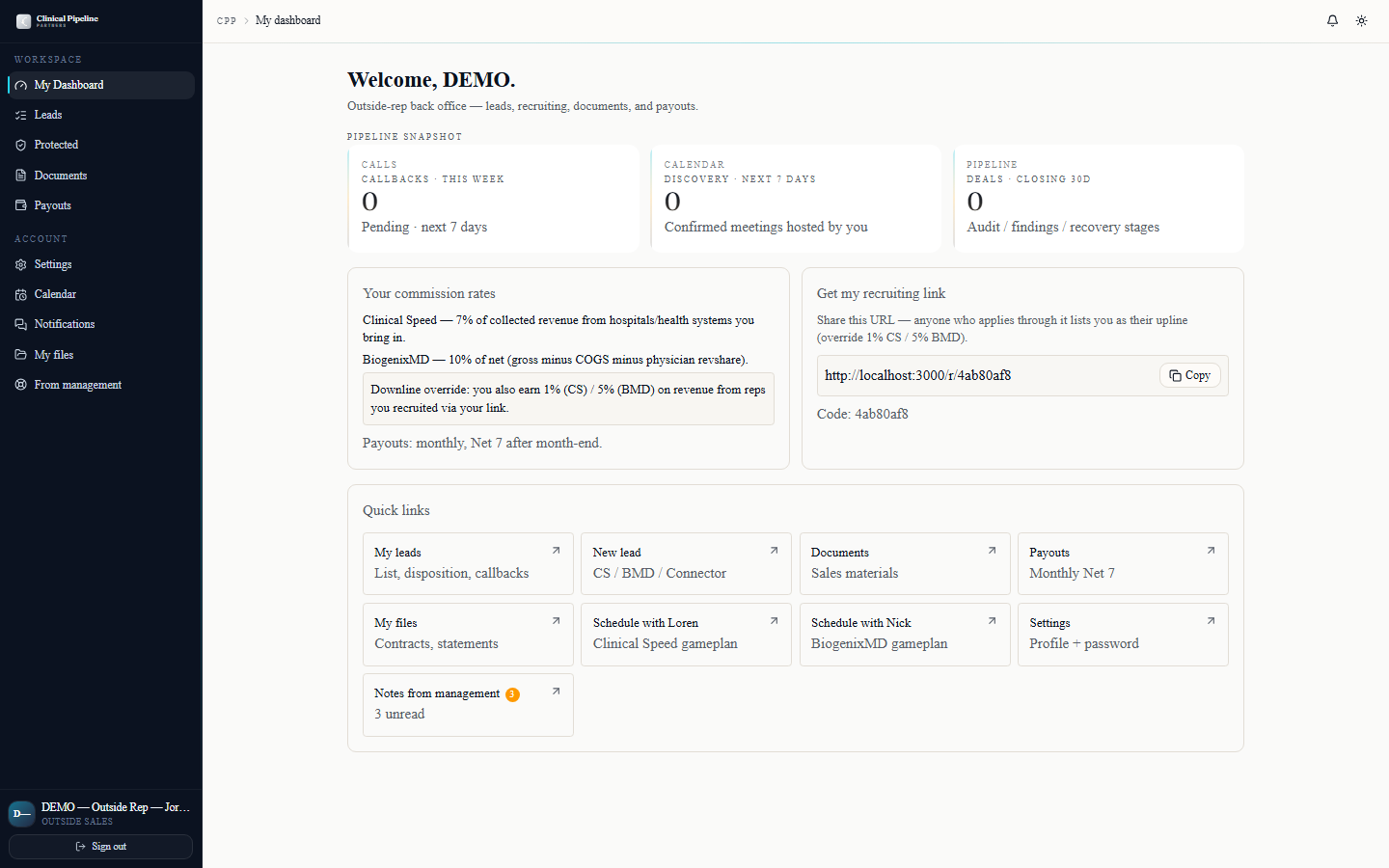
Your /dashboard opens with the rep pipeline snapshot above the rest of the rep view — three KPI cards: callbacks-this-week, discovery-next-7d, and deals-closing-30d.…
Your
/dashboardopens with the rep pipeline snapshot above the rest of the rep view — three KPI cards: callbacks-this-week, discovery-next-7d, and deals-closing-30d. Click any number to drop into the filtered list; the snapshot refreshes whenever a callback fires, a stage advances, or a contract run flips tosigned.The bell icon in the TopBar opens a popover with the last 7 days of rep-relevant events: gameplan-call confirmations, lead-protection expiries on leads you own, contract-run status flips for runs your senior rep sent on your deals, and any reminder emails that bounced.
Use the snapshot as a Monday-morning planning tool: if your callbacks-this-week count is light and your deals-closing-30d count is also light, that's the signal you need to feed the top of the funnel — head to the leads index, work the pool, or schedule new gameplan calls.
- 10
Settings and keyboard shortcuts
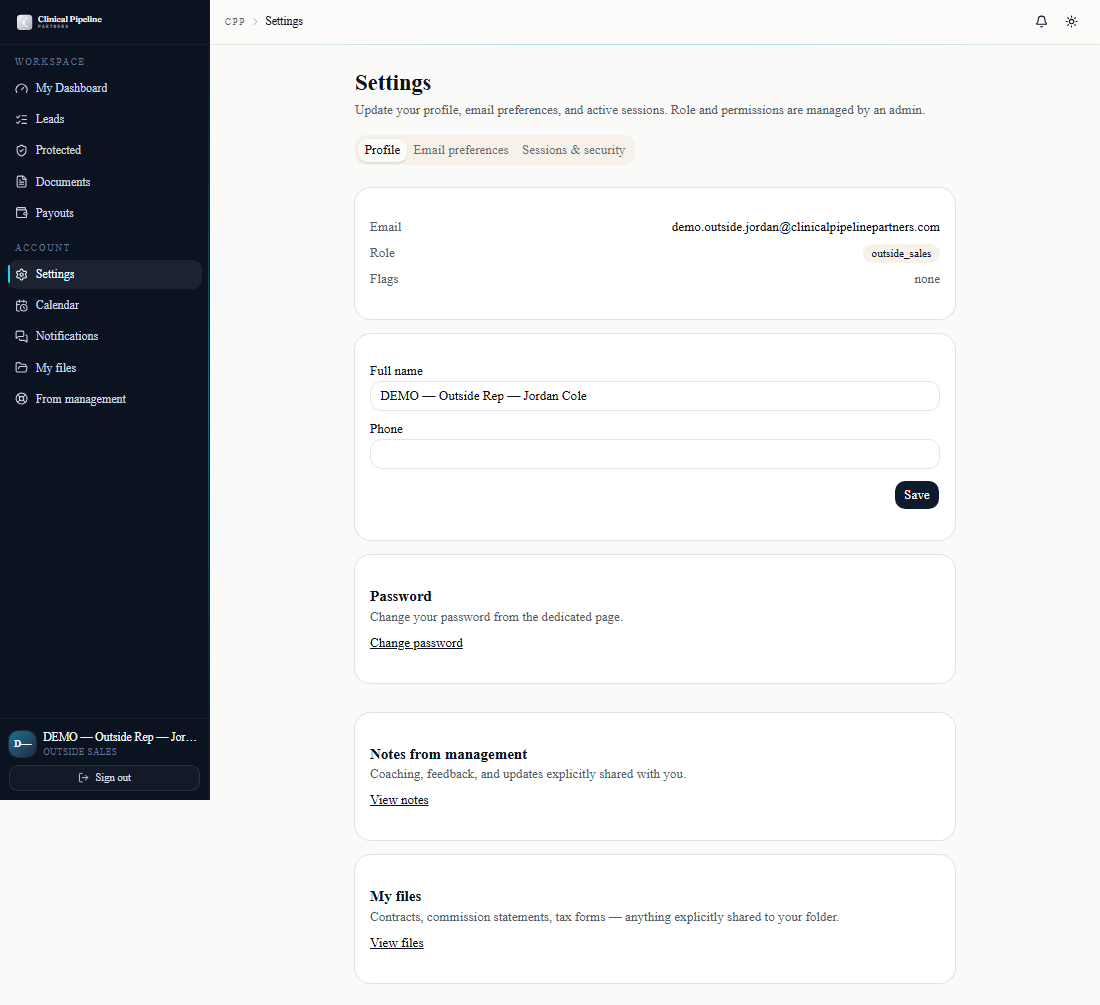
Open /settings to set your defaults. Three tabs:
Open
/settingsto set your defaults. Three tabs:- Profile — display name, photo, default time zone. Time zone matters because the gameplan-call booking flow uses it to render proposed slots in your local time.
- Email preferences — per-event-type opt-in toggles. Most reps keep callback + protection-expiry on and trim the rest.
- Sessions & security —
Sign out everywhereworks today; the full session listing is *Coming soon*. Use the sign-out-everywhere button if you ever lose a phone or laptop.
Press `?` anywhere in the back office to open the keyboard-shortcuts modal. The shortcuts that actually move the needle for outside reps:
- `g` then `l` — jump to the leads index.
- `g` then `d` — jump to the dashboard.
- `/` — focus the global search.
- `n` — new lead from any back-office page.
The modal stays open until you press
?again or click outside it, so you can leave it on while you build muscle memory.


