Role guide
Sales Admin / Admin
Provisions users, runs CSV uploads, resolves lead conflicts, approves outside-rep signups, reassigns leads.
- 01
Invite a new user
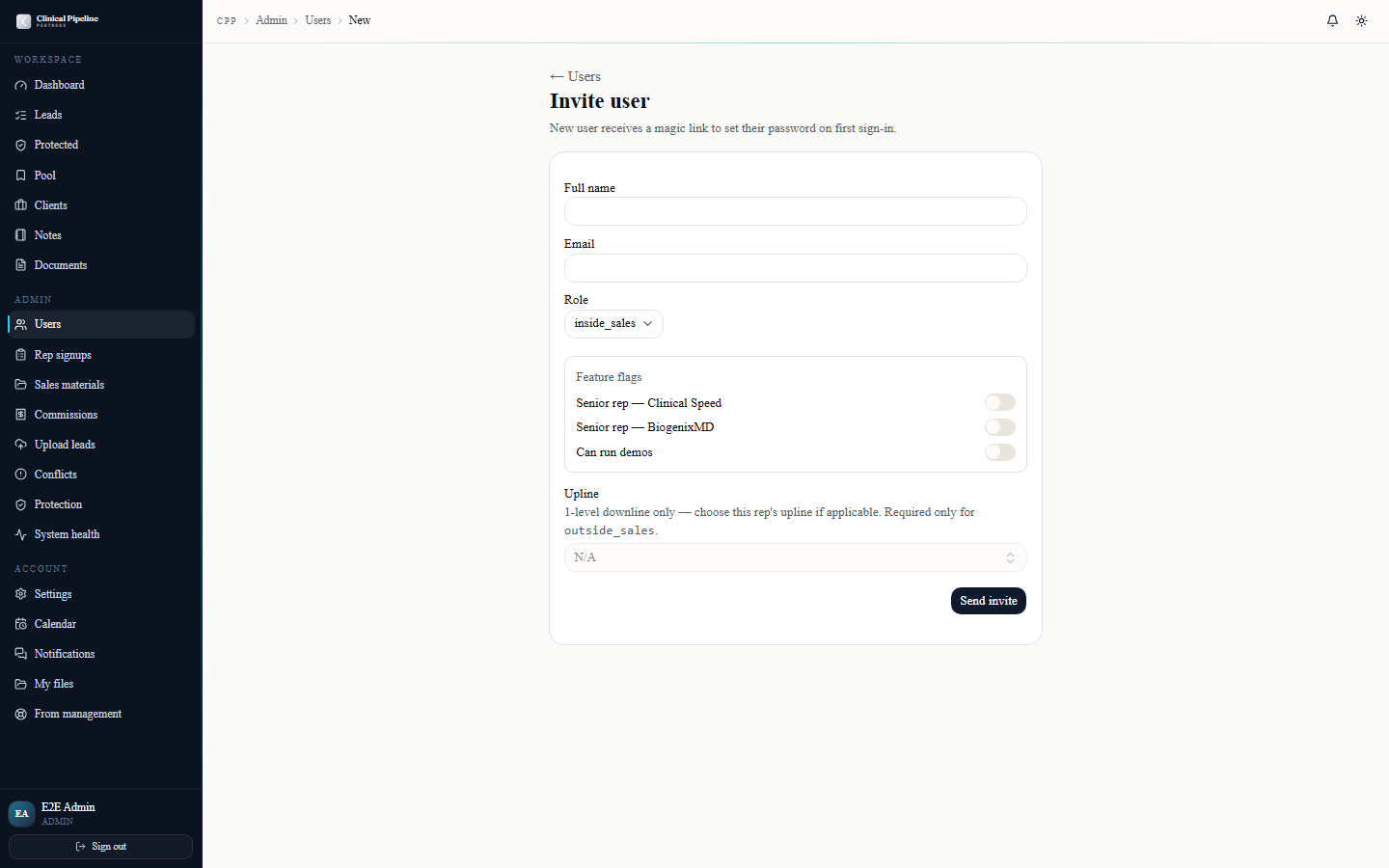
From /admin/users click New user to open the invite form. The form captures:
From /admin/users click New user to open the invite form. The form captures:
- Full name + email — both required, email becomes the login.
- Role — closed dropdown: admin, sales_admin, inside_sales, outside_sales, senior_rep, coo, dev_employee, owner.
- Senior-rep flags — only relevant for
senior_rep: tick CS, BMD, or both. These flags drive which booking pages they own and which leads they can see. - Demo capability —
can_run_demostoggle. Default off. Used to extend Loren's "schedule a demo with X" picker beyond Courtney. - Must change password — defaults on. Forces the user through
/change-passwordon first login.
Submit and the user gets a magic-link welcome email. The link is good for 7 days; if it expires use the Resend invite button on the user row.
The user list itself is searchable, filterable by role, and sortable by created date. Each row shows last sign-in, role, and active status. Click into any user for the detail page where you can edit role flags and see their notes-from-management thread.
- 02
CSV upload with field mapping
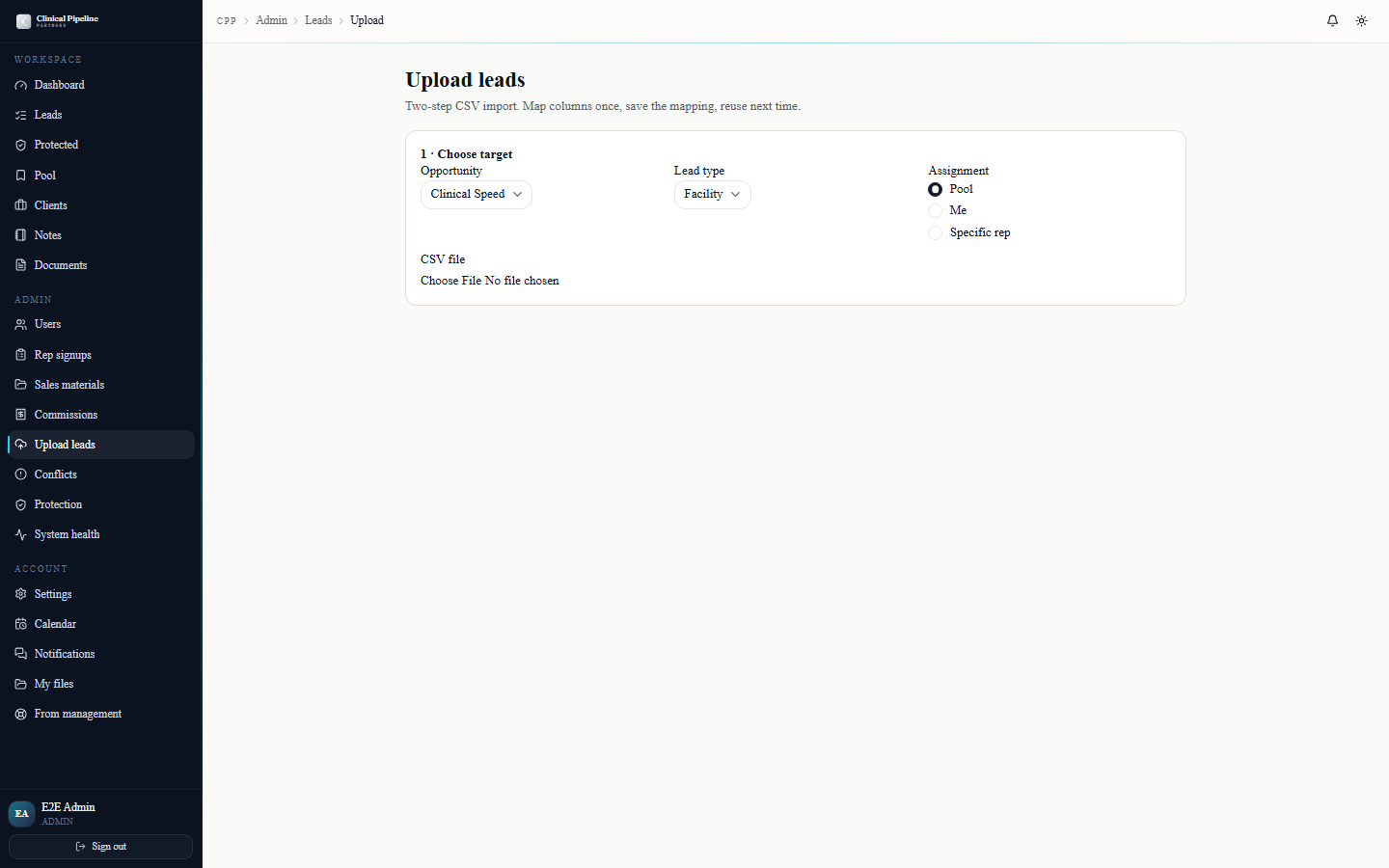
/admin/leads/upload accepts CSV files of any shape and walks you through field mapping in three steps:
/admin/leads/upload accepts CSV files of any shape and walks you through field mapping in three steps:
1. Upload — drag a
.csvfile. The first 50 rows are parsed and previewed; you can drop it again to swap files. 2. Map columns — the system detects column headers and offers best-guess mappings (facility name, address, contact name, contact email, etc.). Override any of them with the dropdowns. You can save a mapping by name (e.g., "BMD inbound list v2") so the next upload from the same source remembers your column choices. 3. Assign + confirm — pick the owner (a single rep, the pool, or "round-robin to inside reps"), pick the opportunity (CS / BMD), and confirm.On confirm, every row is run through the dedup engine. The result page shows three buckets:
- Imported — clean leads, now in the assignee's queue.
- Pending review — near-matches against existing leads. They go to the conflict queue at
/admin/leads/conflictsfor you to rule on. - Rejected hard duplicates — exact matches. The CSV row is dropped with a one-line reason.
Saved mappings live under your user. Other admins can copy them by name. Delete a mapping from the user detail page.
- 03
Reassign a lead
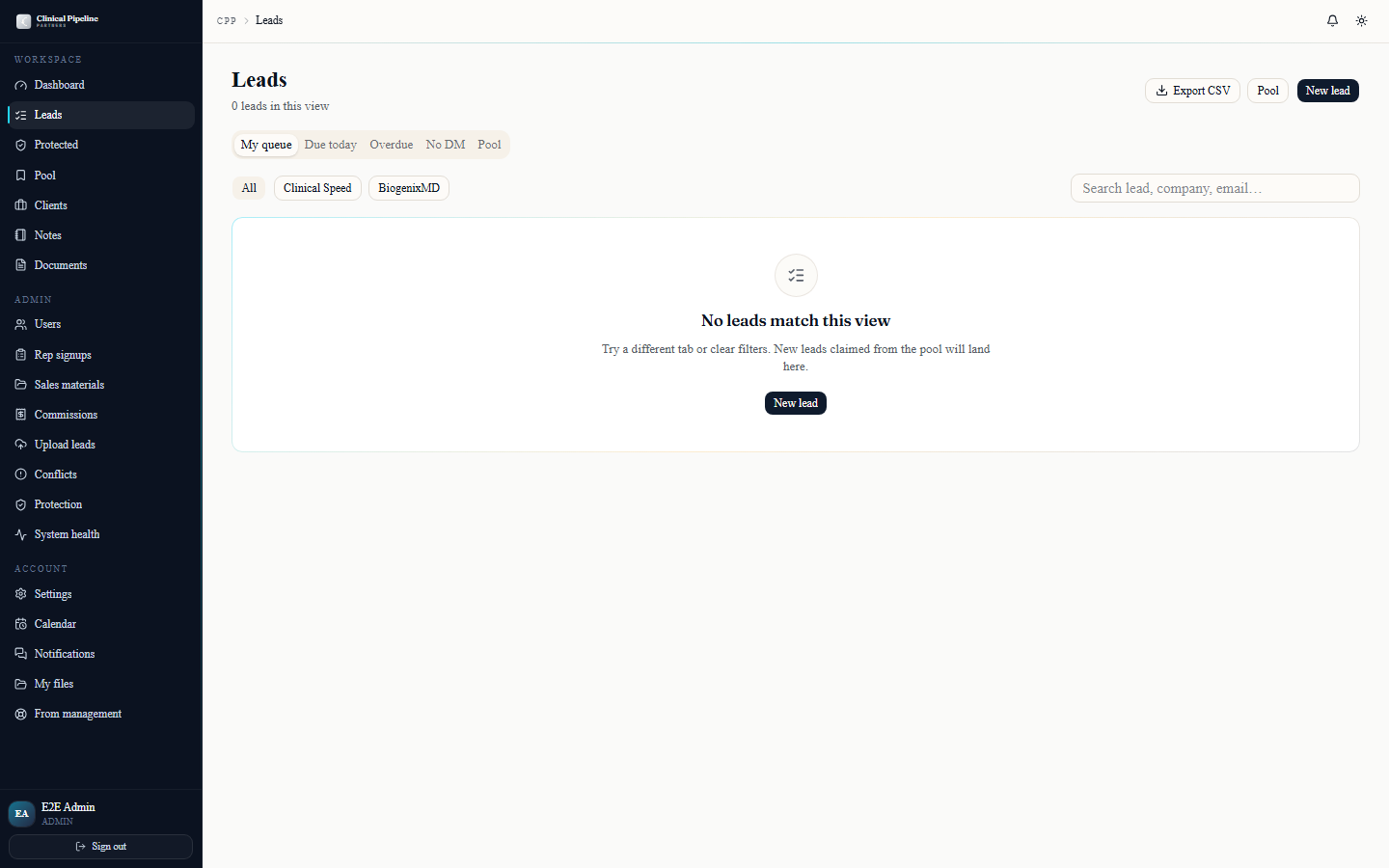
Open any lead from /leads (admin view shows everyone's leads, not just yours). Inside the lead folder header is the owner field with a small reassign button.
Open any lead from /leads (admin view shows everyone's leads, not just yours). Inside the lead folder header is the owner field with a small reassign button.
Click it to open the reassign drawer:
- Pick a new owner — typeahead across all reps. Filtered to active reps by default; toggle to show inactive if you're cleaning up after a departure.
- Reason — optional but recommended. Free-text. Saved in the lead's audit trail and visible to senior management.
- Notify both reps — defaults on. Fires a transactional email to the previous owner ("a lead has been reassigned away from you, here's why") and the new owner ("you've been assigned a new lead").
Reassignment carries the protection-window expiry with it — the new owner inherits whatever days are left, not a fresh 45. Override that with a checkbox if circumstances warrant a reset (e.g., the previous rep never made contact and you're handing off cold).
- 04
Review notes across reps
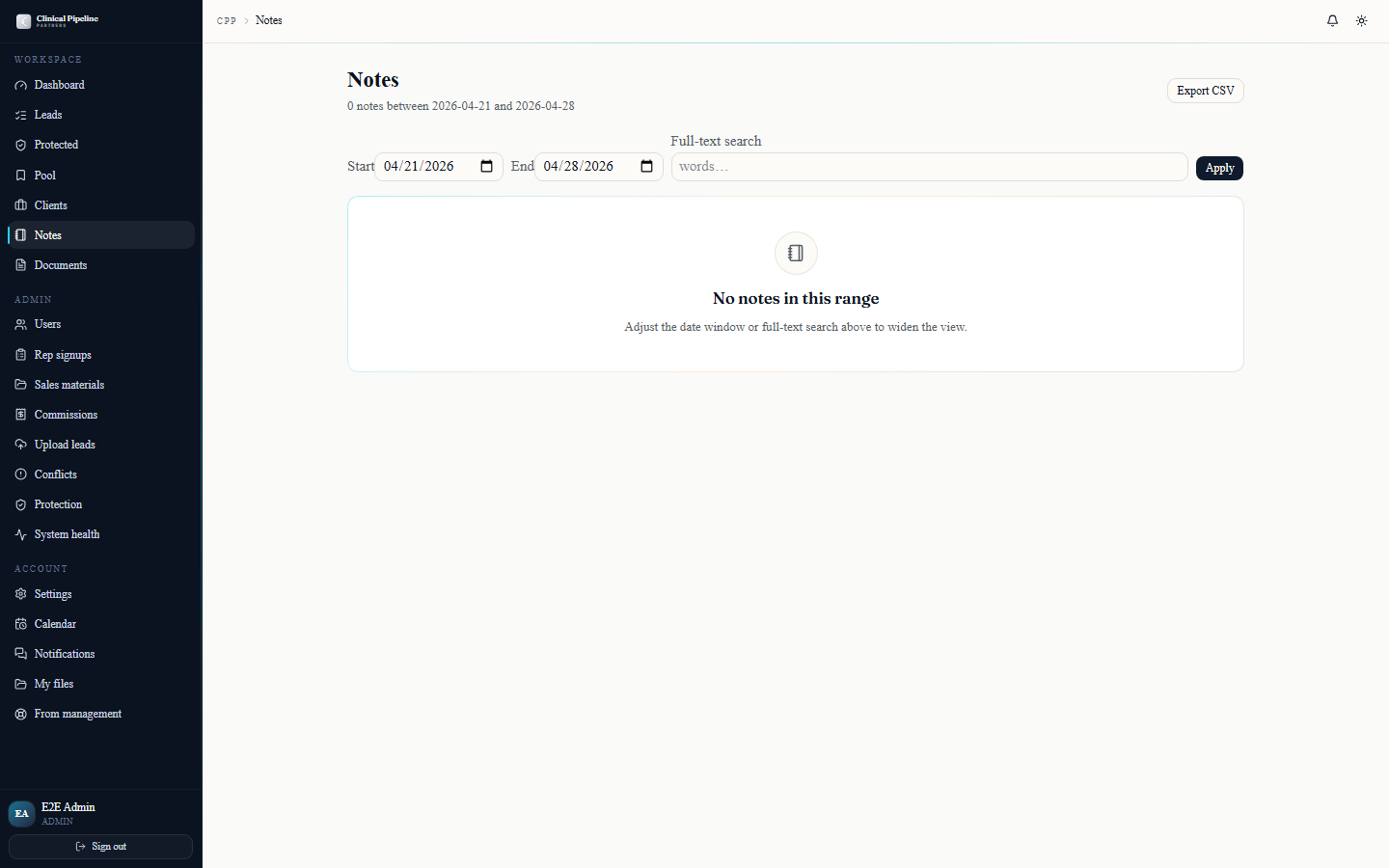
Admins see all three visibility tiers — shared, seniormanagement, and adminonly — across every user, lead, and client.…
Admins see all three visibility tiers — shared, senior_management, and admin_only — across every user, lead, and client. The fastest cross-rep review surface is /notes with the author filter set to a specific rep, or the subject filter set to a specific lead/client.
Use cases:
- Coaching prep — filter by author = rep, date range = last 30 days. Skim their dispositions and notes for tone, completeness, and follow-through.
- Conflict resolution — filter by lead. Stack every note any rep has left to reconstruct what happened.
- Quality audit — filter by visibility tier = senior_management to surface internal flags other reps wouldn't see.
The CSV export honors all filters. Use it to share a coaching summary with Beto or Courtney without dumping the whole notes table.
- 05
Resolve the lead-conflict queue
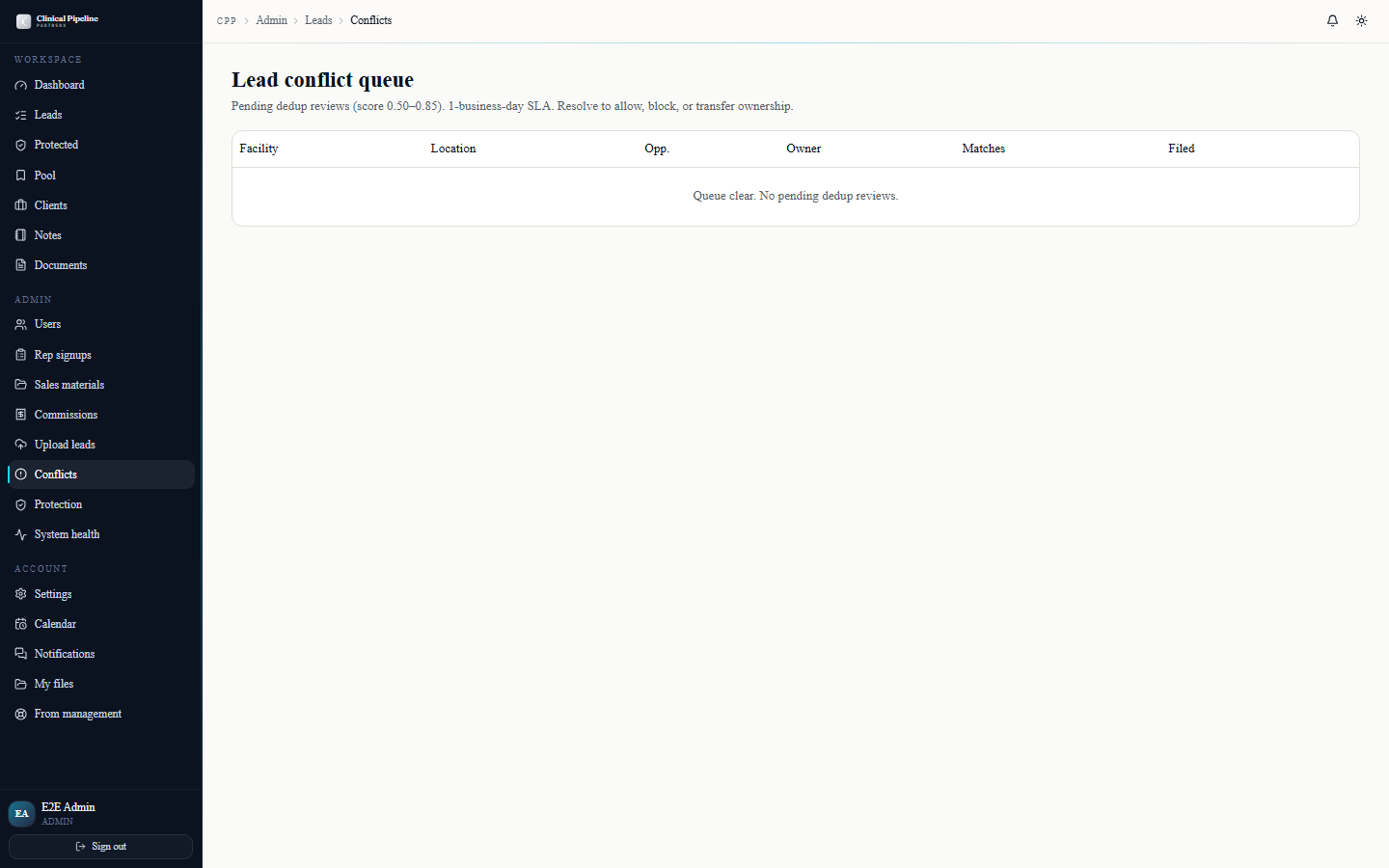
Whenever the dedup engine finds a near-match between a newly-submitted lead and an existing one, both leads are flagged pending_review and the conflict lands in /admin/leads/confli…
Whenever the dedup engine finds a near-match between a newly-submitted lead and an existing one, both leads are flagged
pending_reviewand the conflict lands in /admin/leads/conflicts.Each conflict row shows:
- The new lead (rep + facility + date submitted).
- The existing match (rep + facility + protection expiry).
- The match score (0.00–1.00) — the trigram similarity that triggered the review.
- The fields that matched (name, address, phone — or a combination).
Open a conflict to see both leads side by side. Three actions:
- Allow the new lead — accepts the new lead as a separate entity. The submitting rep gets it; the existing lead stays untouched.
- Reject the new lead — confirms it's a duplicate. The submitting rep is notified with a one-line reason and a link to the existing lead's protection expiry so they can plan around it.
- Reassign — give the lead to a third rep entirely (rare, used for special handling).
Every decision fires a transactional email to the affected reps. Your decision and the reasoning you type land in the lead's audit trail and the conflict log.
- 06
Approve an outside-rep signup
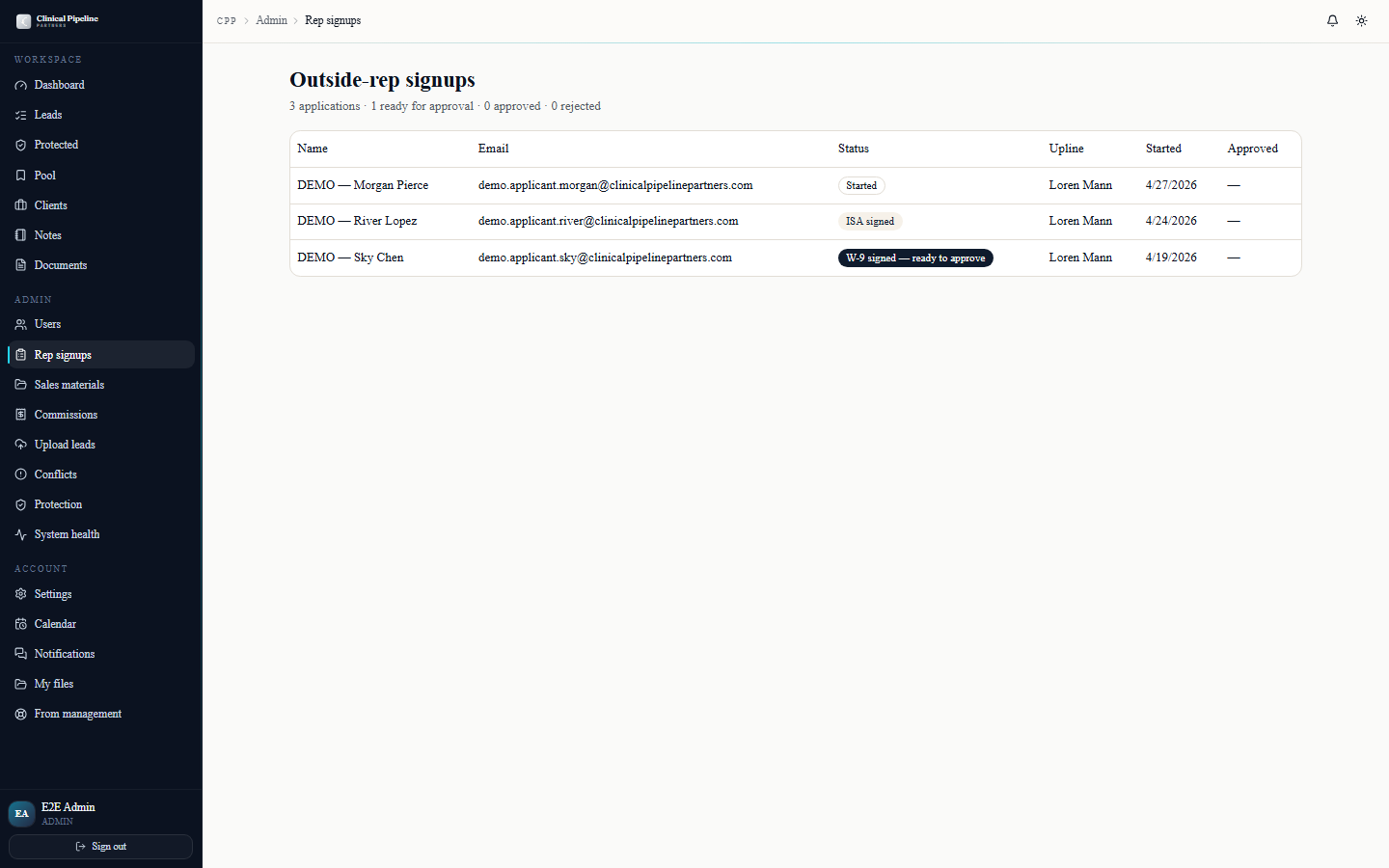
Outside reps land in the approval queue at /admin/rep-signups after they've signed both the ISA and the W-9. The queue shows pending signups oldest-first.
Outside reps land in the approval queue at /admin/rep-signups after they've signed both the ISA and the W-9. The queue shows pending signups oldest-first.
Click into a row to review:
- Apply form — name, email, phone, state, opportunity focus, referral code (and computed upline).
- Executed ISA — embedded PDF preview with the audit trail (IP, UA, doc SHA, signature image hash).
- Executed W-9 — same preview + audit trail.
- Notes — any notes the recruiter or another admin has left.
Three actions:
- Approve — flips the user to active, fires the welcome email with the magic-link, and notifies the recruiter that their downline grew by one.
- Request revisions — emails the rep asking them to re-sign with corrections (e.g., wrong legal name on W-9). Their session resets so they can re-sign without a new apply.
- Reject — closes the signup. The rep gets a polite decline. Optional reason field is for internal record only, not sent to the rep.
- 07
Watch the /system-health dashboard

/system-health is the admin operations console. KPI cards across the top:
/system-health is the admin operations console. KPI cards across the top:
- Last cron runs — every scheduled job (monthly billing, reminder cadence, protection sweep) with last success + duration.
- Email queue depth — outbound items waiting to ship, broken out by domain.
- Open rep signups — count of W-9-signed reps still in the approval queue (hot-link to the queue itself).
- Overdue deadlines — universal-deadline rows whose SLA has passed without resolution.
Below the KPIs is a 7-day audit timeline — every system-fired event (cron run, email send, signing-session lifecycle hook, lead-protection expiry) with timestamps, actors, and outcomes. Filter by domain to investigate a specific subsystem. Click any row for the structured event payload.
- 08
Pull CSV exports across admin pages
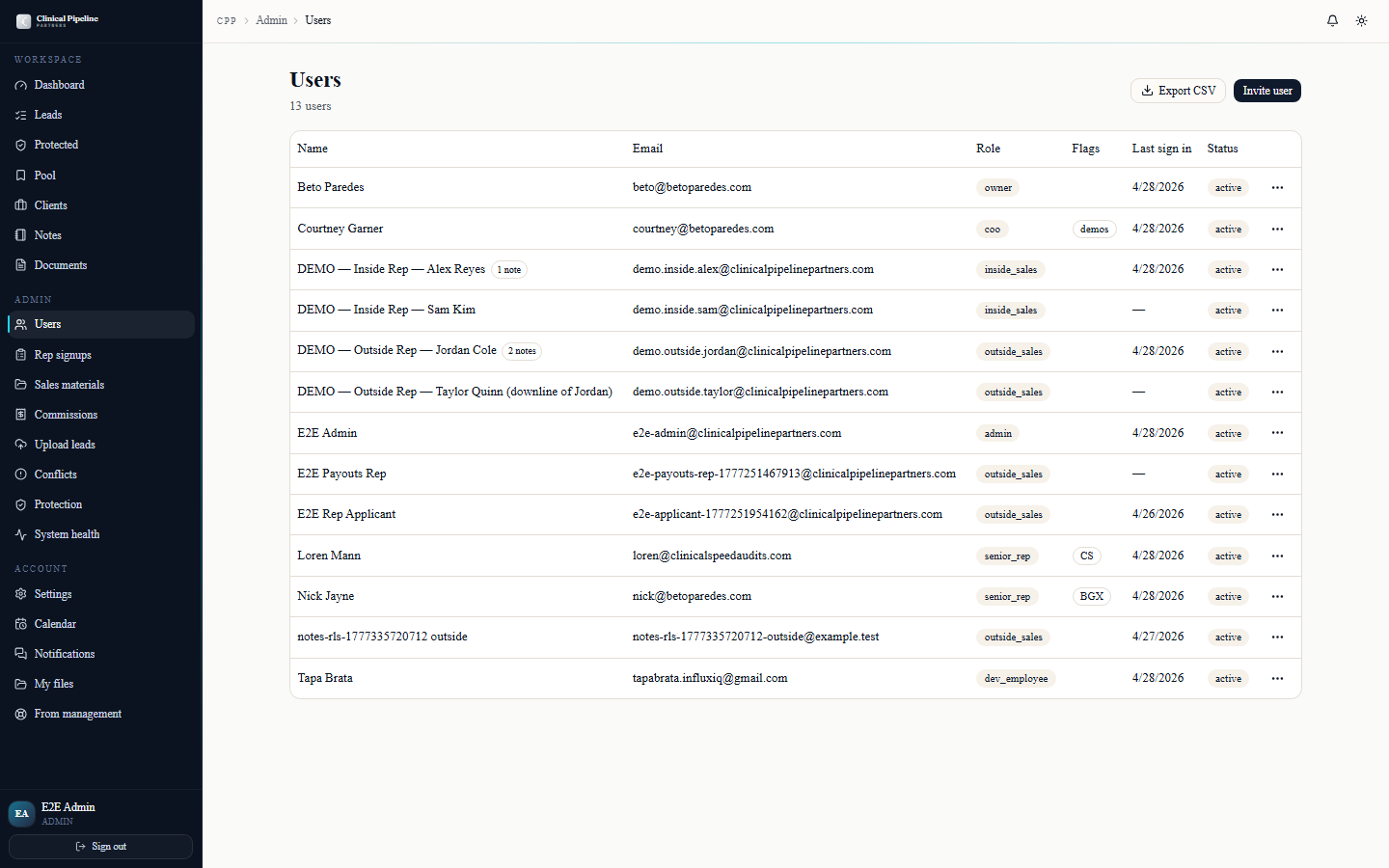
CSV export is wired into every admin-facing list so you can pull a snapshot without screenshotting or manual querying.…
CSV export is wired into every admin-facing list so you can pull a snapshot without screenshotting or manual querying. Look for the Export CSV button in the page header — it respects whatever filters and search terms are currently applied.
Where it ships today:
- /admin/users — current user list with role flags,
can_run_demos, last sign-in, and active status. - /admin/commissions — pending and paid commissions with rep, client, fee snap, period, and payout date.
- /admin/leads — every lead in the system with owner, stage, protection expiry, and source.
- /leads index — the same export filtered to whatever role-scope you have on view.
- /clients index — clients with phase, COO, AM, and recovery rollups.
- Recovery entries (per-client) — recovery_entry rows with payer, identified / submitted / recovered amounts, and the immutable fee snap.
- /admin/users — current user list with role flags,
- 09
Notifications, settings, and keyboard shortcuts
The bell icon in the TopBar opens a popover with the last 7 days of admin-relevant events: rep-signup approvals, contract-run status flips, signing-session bounces, email queue ale…
The bell icon in the TopBar opens a popover with the last 7 days of admin-relevant events: rep-signup approvals, contract-run status flips, signing-session bounces, email queue alerts, and any system warnings the audit timeline surfaces. The list is role-aware — admins see everything routed to the admin tier.
Open
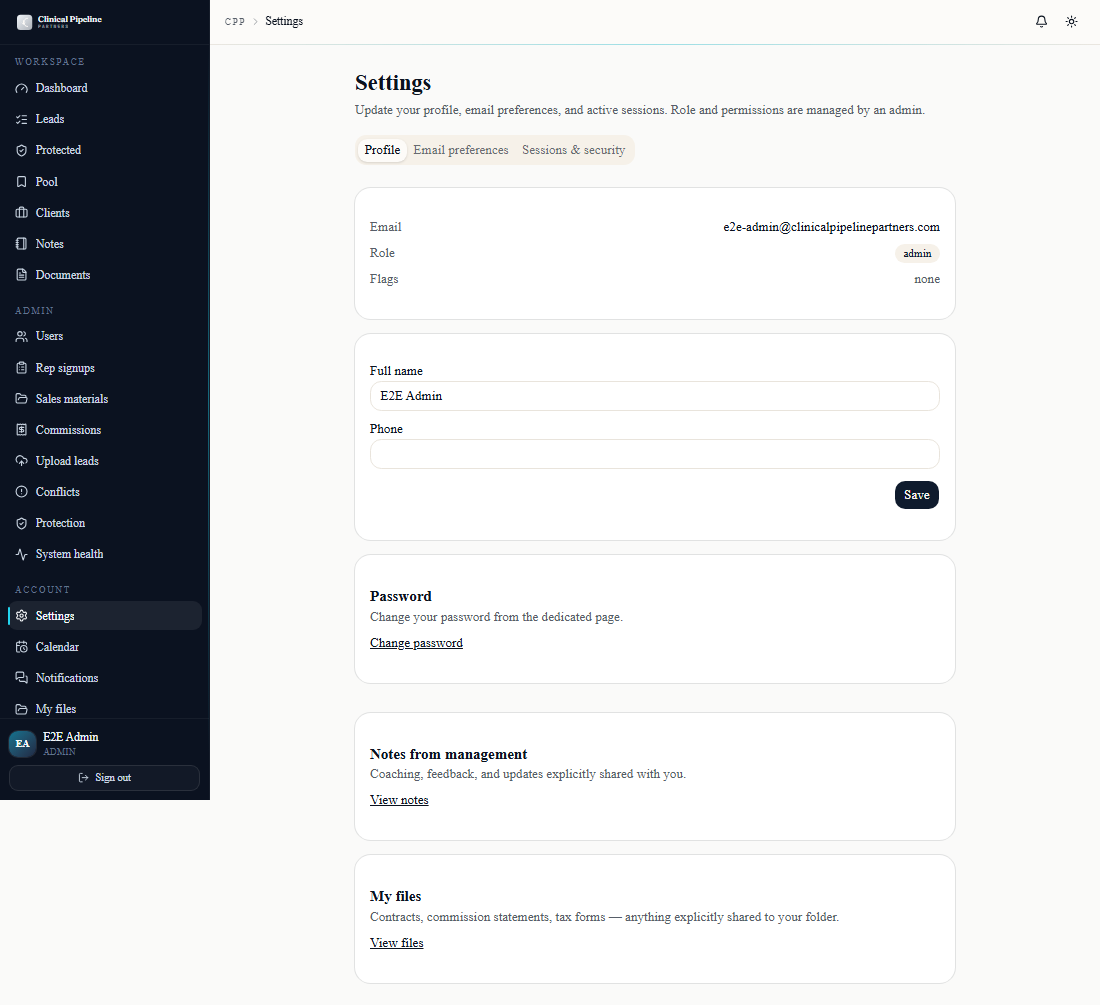
/settingsto set your defaults. Three tabs:- Profile — display name, photo, default time zone.
- Email preferences — per-event-type opt-in toggles. As an admin you'll keep most on; mute only what duplicates the dashboard you already watch.
- Sessions & security —
Sign out everywhereworks today; the full session listing is *Coming soon*.
Press `?` anywhere in the back office to open the keyboard-shortcuts modal — jump-to-search, new-lead, disposition keys, and the navigation jumps are all listed there. The modal is back-office only; marketing pages don't bind it.
- 10
Bulk lead actions and the quick-actions menu
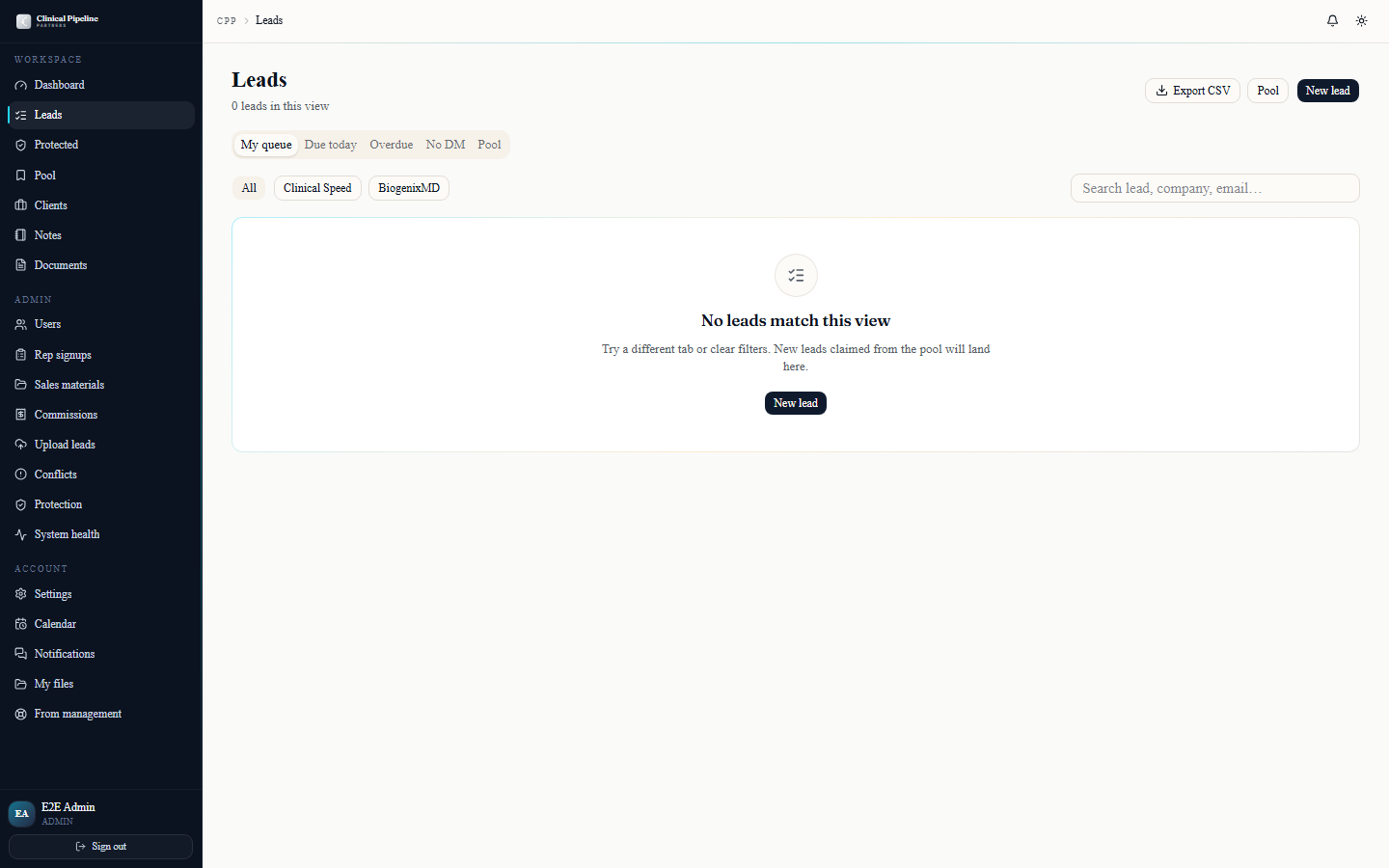
The leads and clients tables ship with bulk multi-select plus a per-row three-dot quick-actions menu.…
The leads and clients tables ship with bulk multi-select plus a per-row three-dot quick-actions menu. Tick the checkboxes on the leads table and the action bar reveals Reassign to..., Mark not interested, and Add to call queue. The three-dot menu mirrors the most-used single-row actions — disposition, reassign, add note, view audit.
Bulk reassign respects RLS and protection windows: if a target rep can't legally see one of the selected leads, the action surfaces an inline error instead of silently dropping the row. Use the conflict queue (step 5) to resolve any blocked reassignments.
- 11
Protected leads view + internal notes visibility
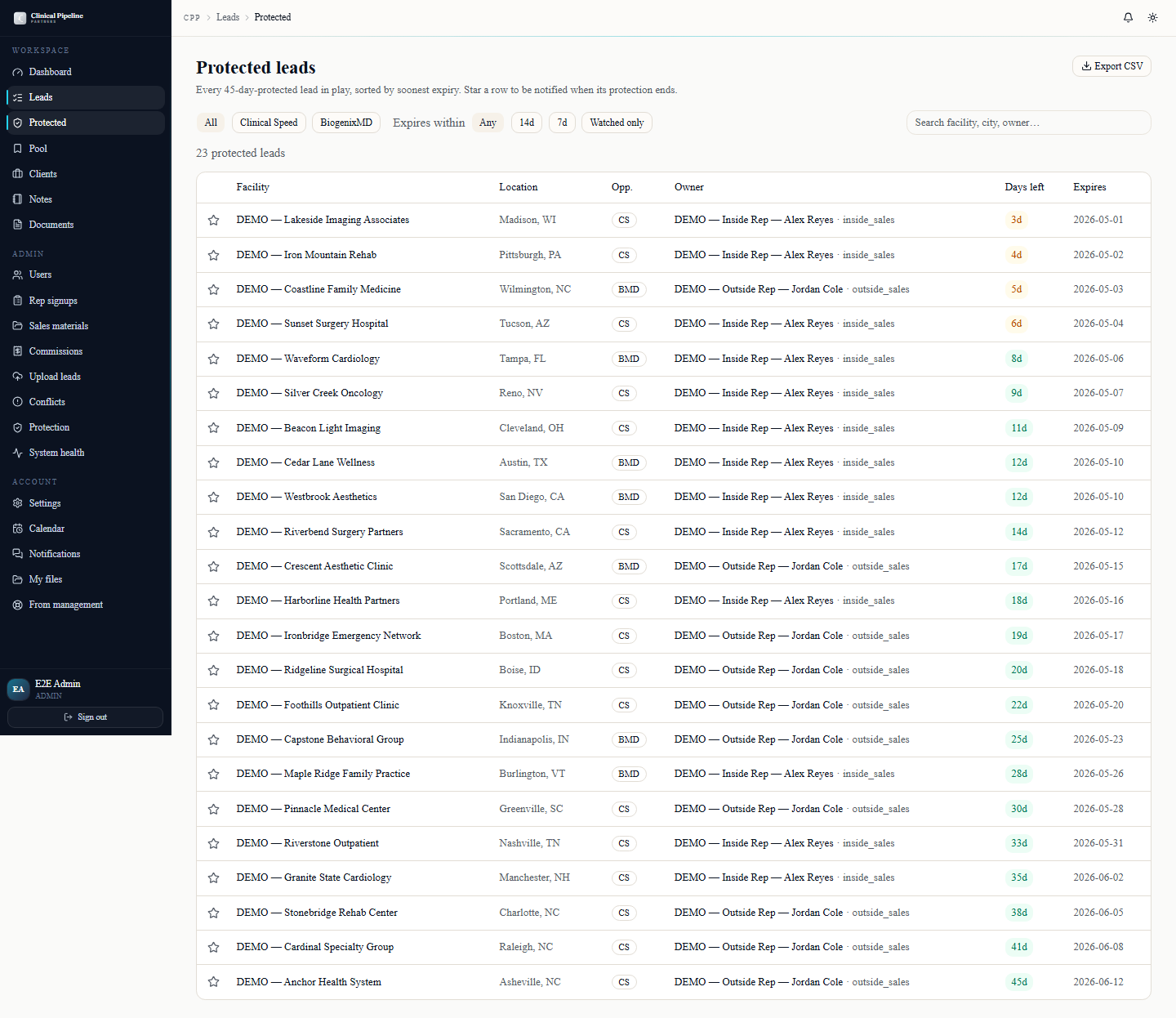
/leads/protected is the public protection list — every rep sees what's locked and by whom.…
/leads/protected is the public protection list — every rep sees what's locked and by whom. As admin you also have the
?expiring_soon=1filter to surface leads inside 7 days of expiry, plus an Export CSV button for offline review (handy for the weekly Loren-Beto sync).Internal notes use a 3-tier visibility model — every note you write picks one of:
- shared_with_subject — the user the note is on can read it (e.g., manager-to-rep coaching).
- senior_management — Loren, Courtney, Nick, Beto, COO; not the subject.
- admin_only — admins + owner; nobody else.
When writing a note, hover the Who will see this? tooltip in the visibility picker. It explains the tier in plain language so you don't accidentally vent to the subject. The same legend appears on user-folder, lead-folder, and client-folder note threads.
- 12
Contract-run oversight — sender controls + RFI Intake
![The /contract-runs/[id] detail page from an admin's view with the Intake (RFI) tab open.](/instructions-img/admin/12-contract-run-oversight.png)
Senior reps own the send-for-signing flow at /contract-runs/new, but as admin you have full visibility on every run.…
Senior reps own the send-for-signing flow at /contract-runs/new, but as admin you have full visibility on every run. Open
/contract-runs/[id]for any run to see live signing status, the reminder schedule indicator, and the same sender controls the senior rep has: Resend reminder now, Cancel send (with reason), and Re-send RFI.Use these when:
- A senior rep is out and a prospect needs a re-fired link — you can resend without waiting on the rep.
- A run was sent with the wrong terms or to the wrong DM — cancel with reason and the audit trail captures who pulled it and why.
- The COO needs to drop a returned RFI PDF in — the Intake (RFI) tab is where the Upload PDF return button lives, alongside the parsed digital web-form submissions for the same run.


![The /contract-runs/[id] detail page from an admin's view with the Intake (RFI) tab open.](/instructions-img/admin/12-contract-run-oversight.webp)